Every device listed. Any of them signed out.
Each browser you sign in from becomes a session you can see and revoke. A sign-in from somewhere new raises an alert, and changing your password signs everything else out.
Your account, your devices, your say
For knowing who is signed in as you.
Account security in GovCon is about your own account: a password, a list of the devices signed in with it, alerts when something changes, and an e-mail link to recover access. It lives on the Account page under Security.
Everyone uses it. Administrators also manage the platform side — roles, permissions and the log — described on the Roles, permissions & audit page.
It replaces not knowing whether last month’s laptop is still signed in.
Account security, step by step.
Step 1: Change your password
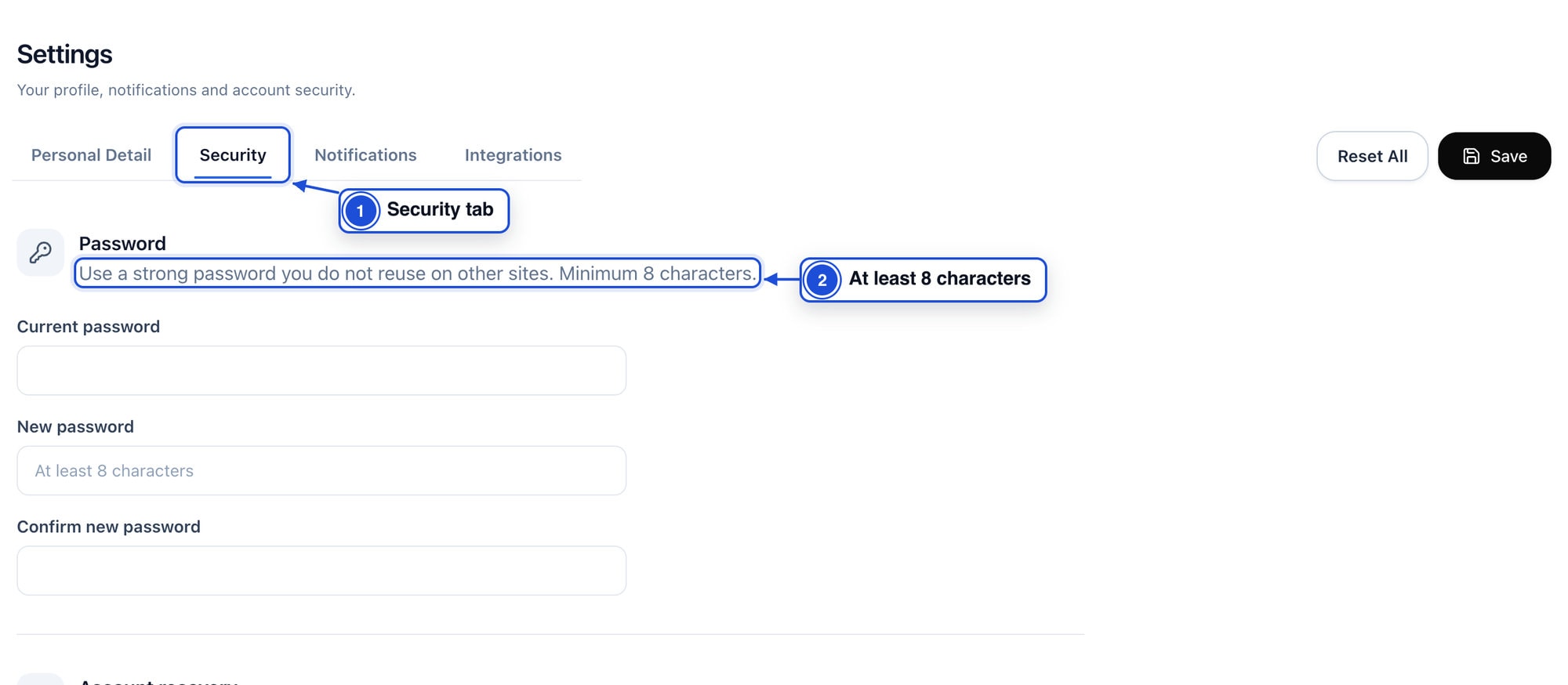
Account → Security asks for the current password and a new one of at least eight characters. Saving it signs out every other device at once.
Screenshot: The Security tab of the Account page: the password form with current, new and confirm fields, and the minimum of eight characters.
Step 2: See your devices
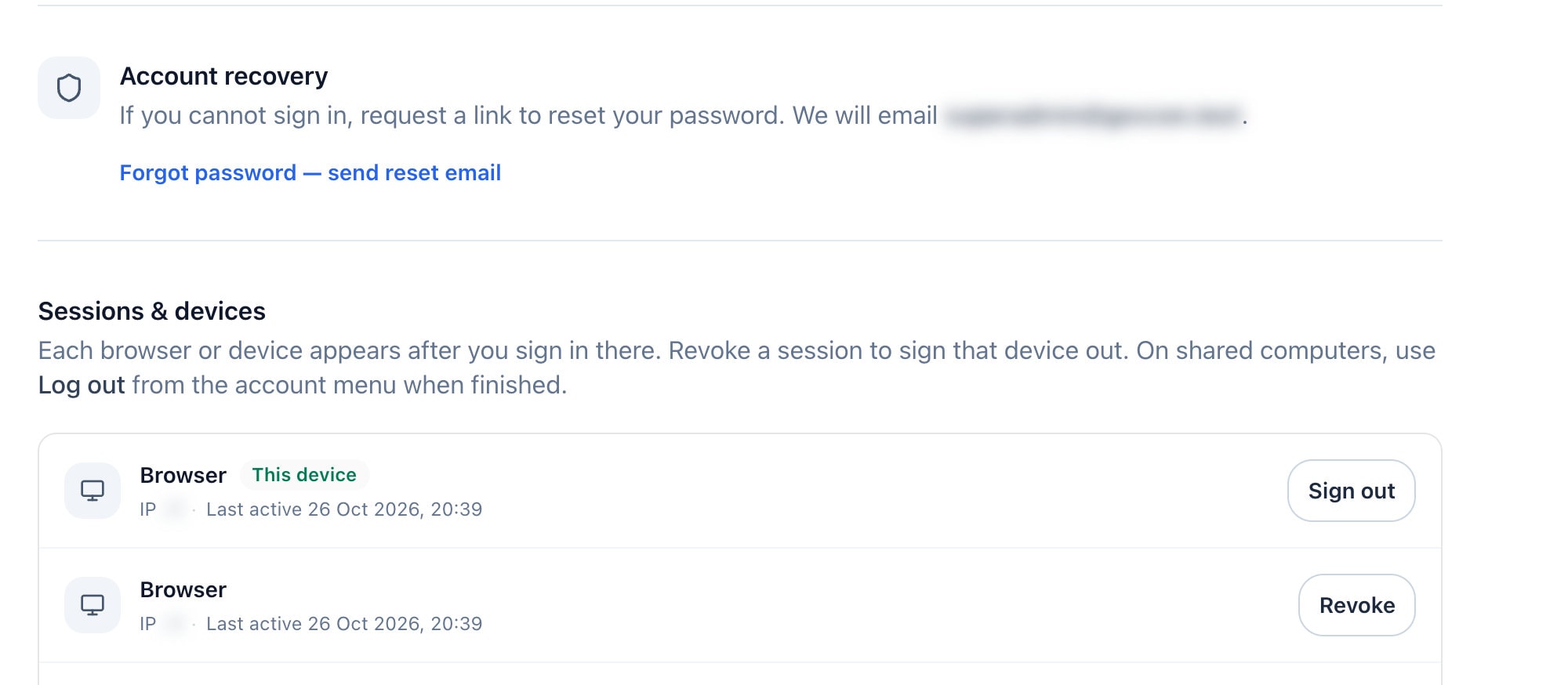
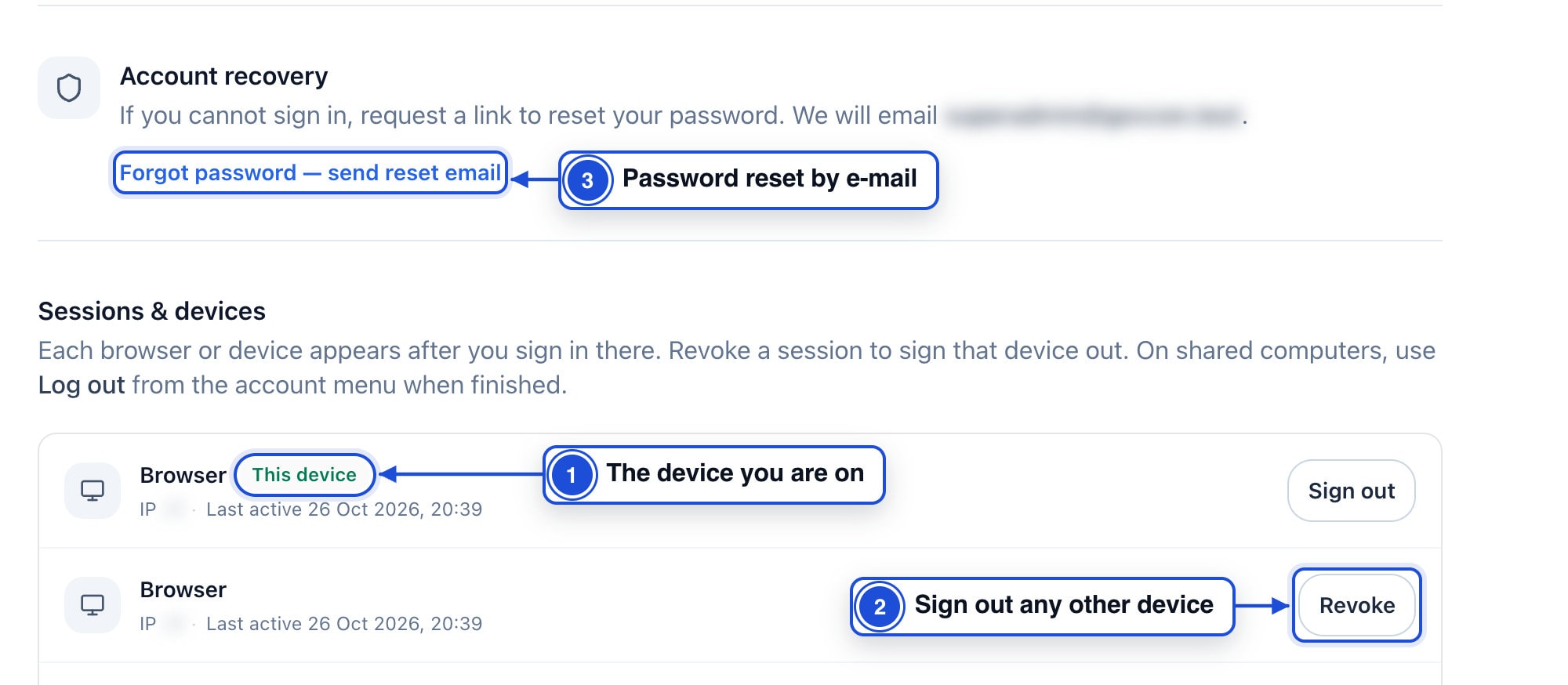
Sessions & devices lists each browser or device signed in to your account, the address it connected from and when it was last active, with This device marked. Sign out any of them; the change takes effect on that device’s next request.
Screenshot: Sessions & devices on the Security tab: two browser sessions with last-active times, This device marked, and Sign out and Revoke buttons (addresses blurred).
Step 3: Recover access
Forgot password — from the sign-in page or the Security tab — e-mails a single-use reset link to your address.
Step 4: Be told
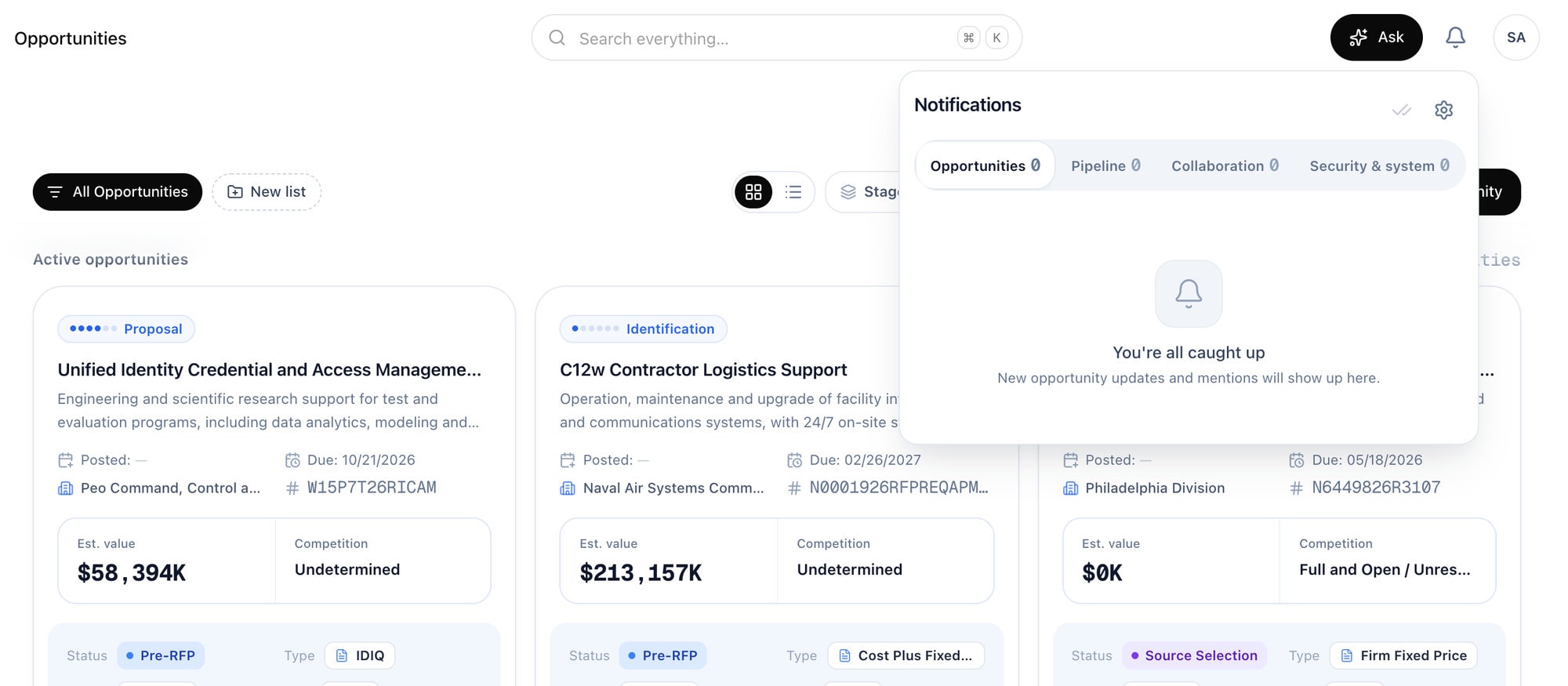
A sign-in from a device or network GovCon has not seen on your account, a password reset requested or completed, an invitation, and a change to your role or permissions each raise a notification under the bell’s Security & system filter — and by e-mail if you keep Security alerts switched on.
Step 5: Stay signed in, or not
Leave Keep me signed in ticked on your own computer for a 30-day session; untick it on a shared machine and the session ends after 24 hours. Log out sits under your avatar.
The specifics.
Password: at least 8 characters. Changing it revokes every other session.
Sessions: one per browser or device, with a readable device label, the address it connected from and last activity. Revoke any of them from the Security tab.
New sign-in alert: raised when the device or address is not among your other active sessions.
Session length: 30 days with Keep me signed in; 24 hours without.
Password reset: a single-use, time-limited link by e-mail; the request and the reset each raise a security notification.
Security notifications: new sign-in, password reset requested, password reset completed, account invited, role changed, permissions changed.
Hosting: Microsoft Azure, U.S. regions — a containerised API and web app with a managed PostgreSQL database. Documents sit in Azure Blob Storage and are served through links that expire in 30 minutes.
Nothing you upload or type is used to train a model. The assistant reads your documents inside your workspace only.
Data behind Account security
- Source 01
- Your account’s sessions and security events, kept in your workspace
- Refresh
- Immediate. A revoked session is refused on its next request; a new sign-in is checked against your other sessions the moment it happens.
The words, explained.
- Session
- One signed-in browser or device. Each has its own entry you can end.
- Revoke
- Ending a session from the Security tab, so that device is signed out on its next request.
- Security alert
- A notification about your own account — a new sign-in, a password reset, a role or permission change.
- Expiring link
- Documents are served through links that stop working after 30 minutes, so a copied link does not stay open.
What people ask about Account security.
Short answers here. The playbook has the long ones, screen by screen.
Still have a question? Book a working session
What it works with.
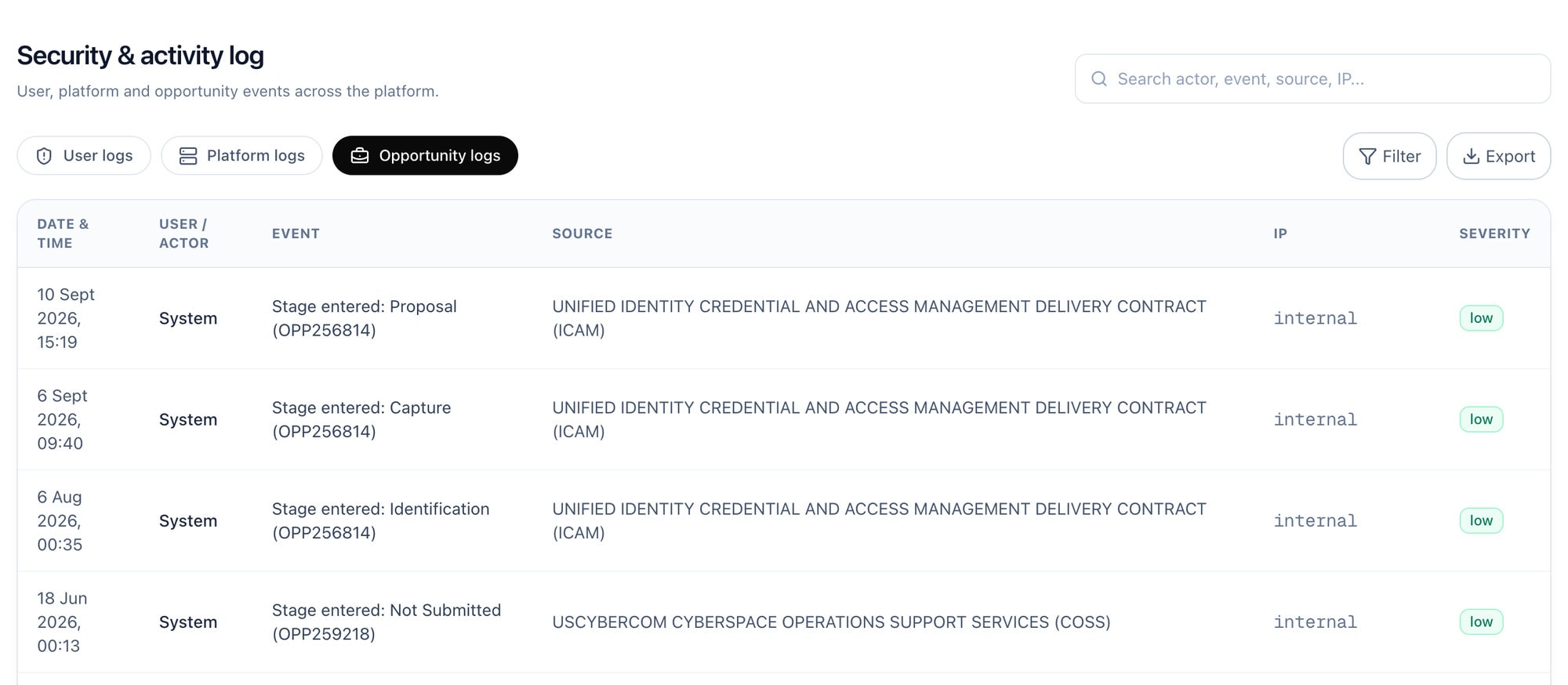
- Roles, permissions & audit
 11
Roles, permissions & audit
For controlling access without a spreadsheet of who-can-what.
- Automatic updates & notifications
 09
Automatic updates & notifications
For keeping up with a pursuit that keeps moving.
- Team collaboration
 10
Team collaboration
For working on the same pursuit without e-mailing versions around.
Want it walked through on your own pursuit?
Bring one solicitation. In forty-five minutes we import it, pull the incumbent’s award history, and show you Account security working on it. You keep the record either way.
- GovWin under your own licence
- USAspending needs no account
- Nothing you upload trains a model