GovWin moved. A colleague moved. You were told.
GovCon re-reads every stored opportunity, watches your pipeline and comments, and collects what changed under one bell — in the app, and by e-mail if you want it.
Find out what changed without going to look
For keeping up with a pursuit that keeps moving.
Notifications are how GovCon tells you something happened while you were not looking. There are six kinds: a GovWin record changed, you were assigned to a pursuit, a pursuit you are assigned to moved stage, someone @mentioned you in a comment, someone posted on the Notes & Timeline of a pursuit you are assigned to, and a security event on your own account.
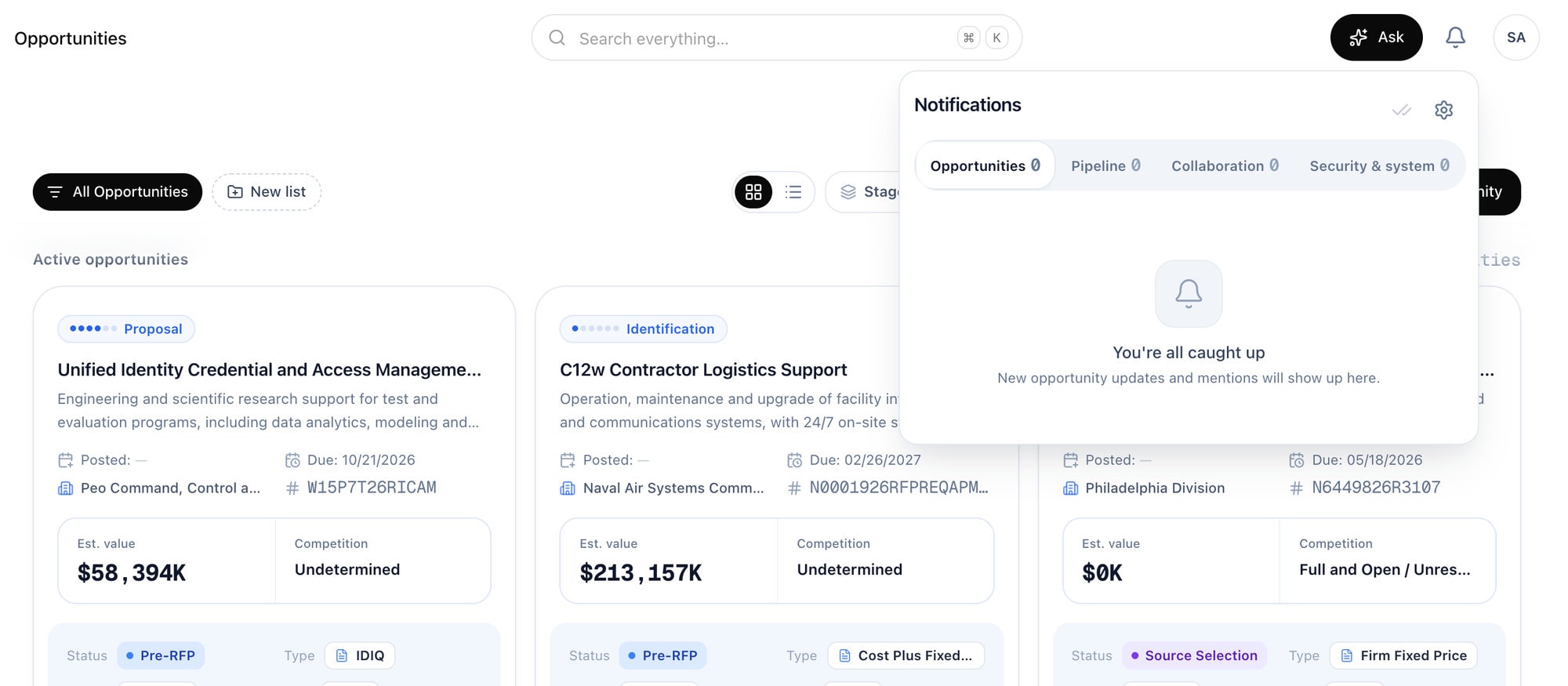
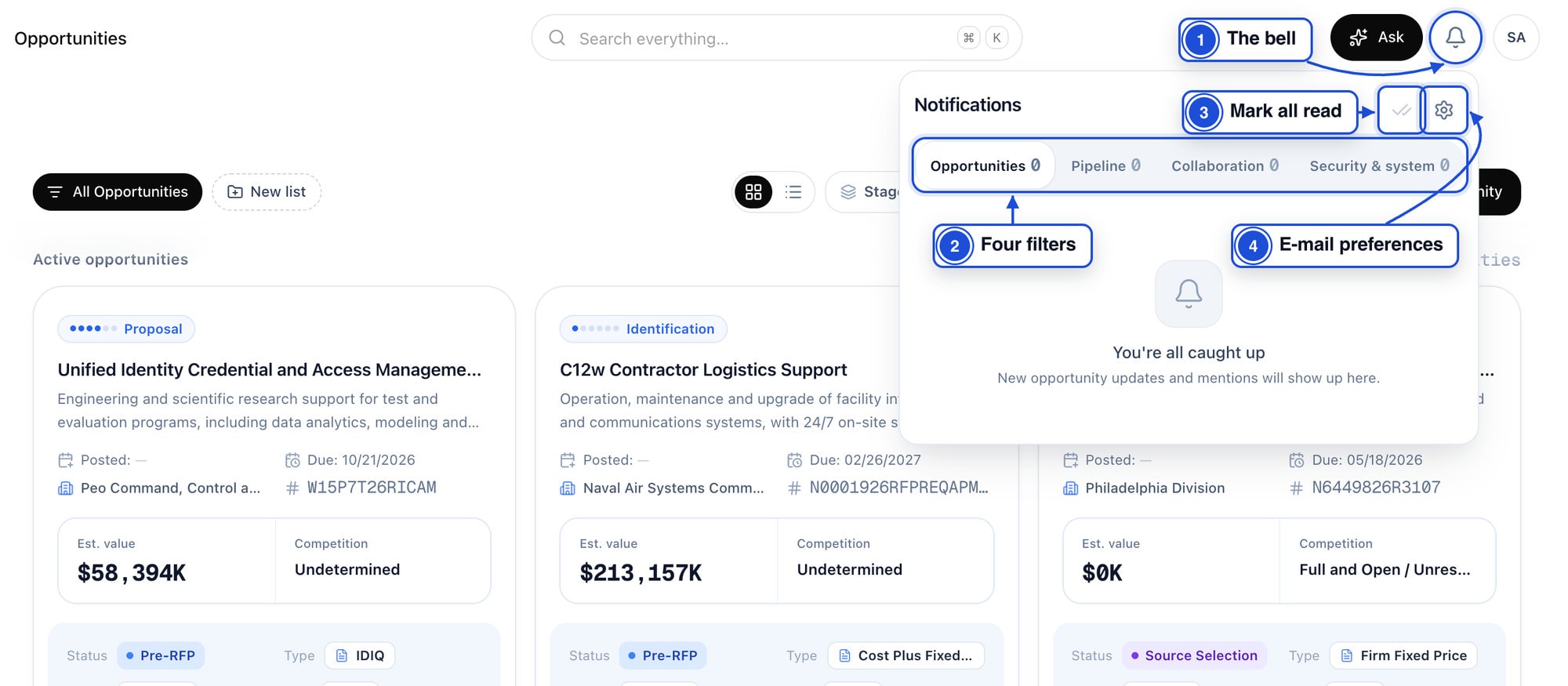
Everyone on the team gets them. The bell in the page header shows an unread count and opens a panel with four filters — Opportunities, Pipeline, Collaboration, and Security & system — and each item links to the record it is about.
It replaces re-reading the GovWin notice to see whether anything moved, and the “did you see my comment?” e-mail.
Automatic updates & notifications, step by step.
Step 1: GovCon re-reads GovWin for you
GovCon reads each stored opportunity from GovWin again and compares it field by field. When something changed, the field carries an Updated badge on the record, new documents are downloaded, and one notification per changed opportunity lists the fields that moved.
Step 2: Open the bell
The bell in the page header shows how many notifications are unread and refreshes every 45 seconds. The panel filters by Opportunities, Pipeline, Collaboration and Security & system, each with a count. Mark one item read, mark a whole category read, delete an item, or clear all opportunity updates at once.
Screenshot: The notifications panel open under the bell, with Opportunities, Pipeline, Collaboration and Security & system filters, a mark-all-read control and a settings link.
Step 3: Follow the link
Each item opens the record it is about. An opportunity update opens the record with the changed fields badged; a mention opens the capture document or the Notes & Timeline with the comment highlighted; a pipeline notification opens the pursuit that moved.
Step 4: Choose your e-mails
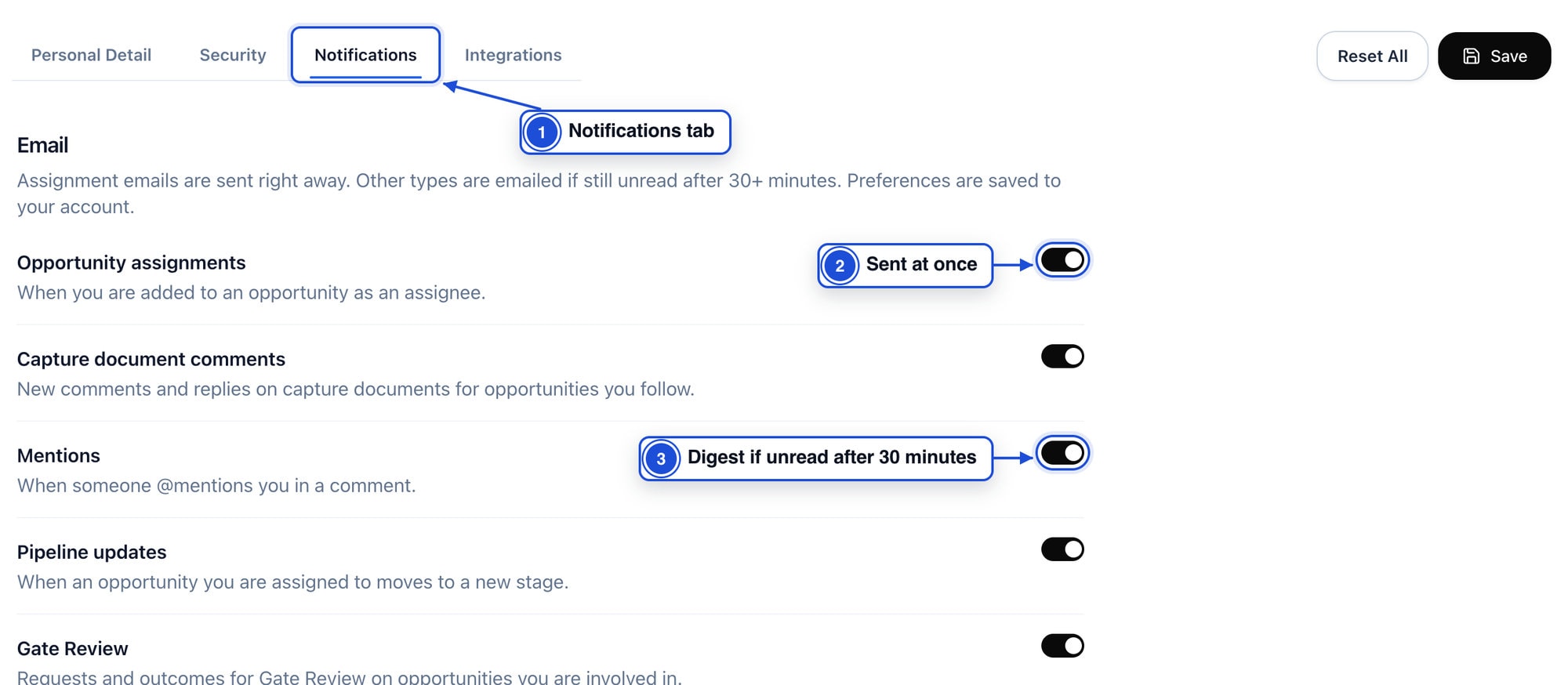
Under Account → Notifications, switch on e-mail for assignments, capture-document comments, mentions, pipeline updates and security alerts. Assignment e-mails go out at once. Everything else is bundled: a notification still unread after 30 minutes goes into the next digest run, every five minutes, grouped by category.
Screenshot: The Notifications tab of the Account page: e-mail switches for opportunity assignments, capture document comments, mentions and pipeline updates.
Step 5: Security events too
A sign-in from a device or network GovCon has not seen on your account, a password reset, an invitation, and a change to your role or permissions each raise a notification under Security & system.
The specifics.
Six kinds of notification: GovWin record updates, assignments, pipeline stage moves, @mentions, Notes & Timeline activity on pursuits you are assigned to, and security events on your own account.
Each GovWin re-read raises one notification per changed opportunity, naming the fields that changed.
The bell refreshes every 45 seconds. The panel filters by Opportunities, Pipeline, Collaboration, and Security & system.
Assignment e-mails are sent immediately. Other e-mails are digests: anything unread for more than 30 minutes is sent in the next run, every five minutes, one e-mail per person grouped by category.
E-mail is chosen per person under Account → Notifications: assignments, capture-document comments, mentions, pipeline updates, security alerts.
E-mail needs delivery configured for your deployment. Without it, notifications stay in the app.
A stage move notifies the pursuit’s assignees, not the person who moved it. Assigning yourself raises no notification.
Security notifications: a new sign-in from an unrecognised device or network, a password reset requested or completed, an invitation, a role change, a permissions change.
Data behind Automatic updates & notifications
- Source 01
- GovWin IQ, re-read and compared field by field with what is stored
- Source 02
- Your team’s own actions — assignments, stage moves, comments and mentions
- Source 03
- Your account’s sign-ins and administrative changes
- Refresh
- The bell every 45 seconds; e-mail digests every five minutes for anything unread longer than 30 minutes.
The words, explained.
- Digest
- One e-mail that bundles several notifications instead of sending one each. GovCon sends one when something has been unread for more than 30 minutes.
- @mention
- Typing @ and a colleague’s name in a comment or note. They are notified in the app and, if they have it switched on, by e-mail.
- Re-sync
- GovCon reading a stored opportunity from GovWin again and comparing it field by field with what it already holds.
- Updated badge
- The amber mark on a field of the record that changed since the last check.
What people ask about Automatic updates & notifications.
Short answers here. The playbook has the long ones, screen by screen.
Still have a question? Book a working session
What it works with.
- Opportunities
 01
Opportunities
For keeping track of what you are chasing.
- Team collaboration
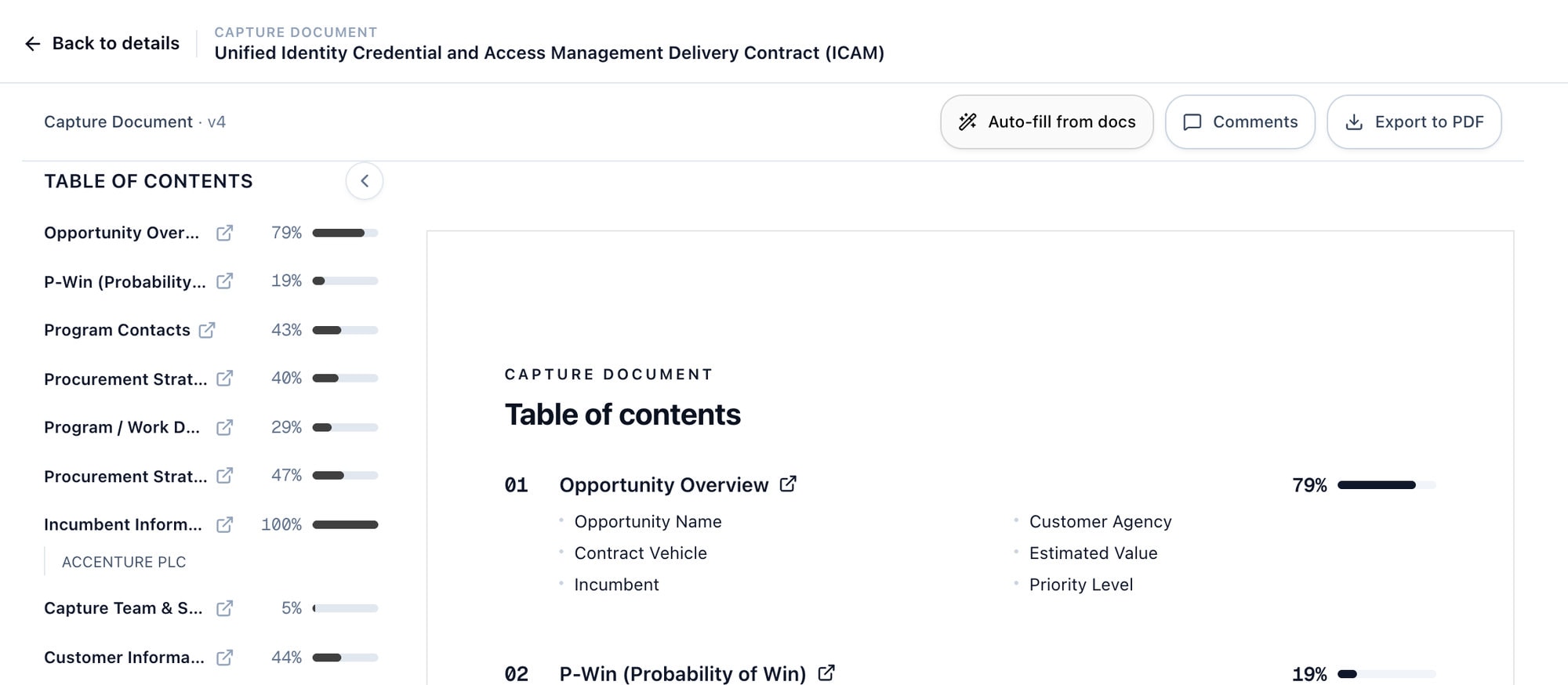 10
Team collaboration
For working on the same pursuit without e-mailing versions around.
- Account security
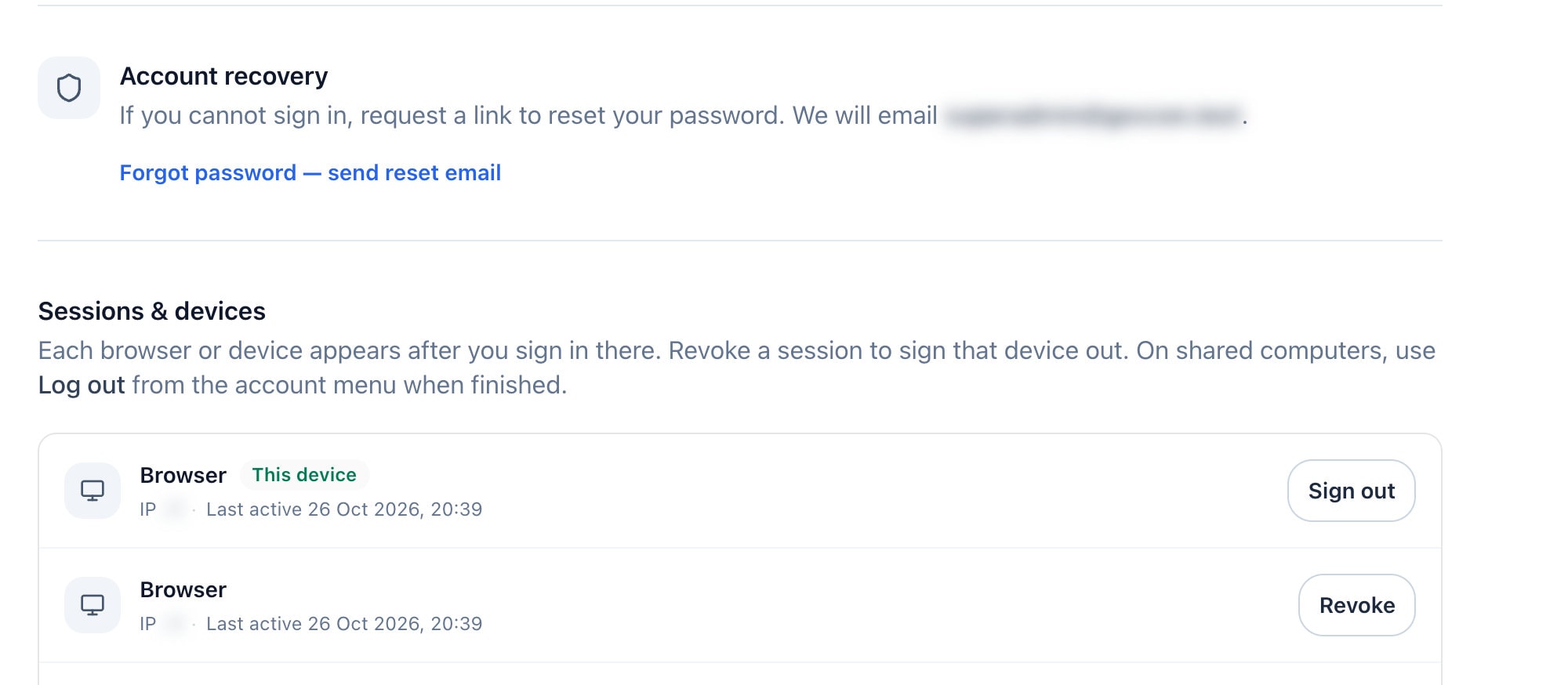 14
Account security
For knowing who is signed in as you.
Want it walked through on your own pursuit?
Bring one solicitation. In forty-five minutes we import it, pull the incumbent’s award history, and show you Automatic updates & notifications working on it. You keep the record either way.
- GovWin under your own licence
- USAspending needs no account
- Nothing you upload trains a model