Can we do this? Line by line, with proof.
GovCon reads the work statement, lists every numbered requirement word for word, and rates each one against your own past projects — with the project and the source clause one click away.
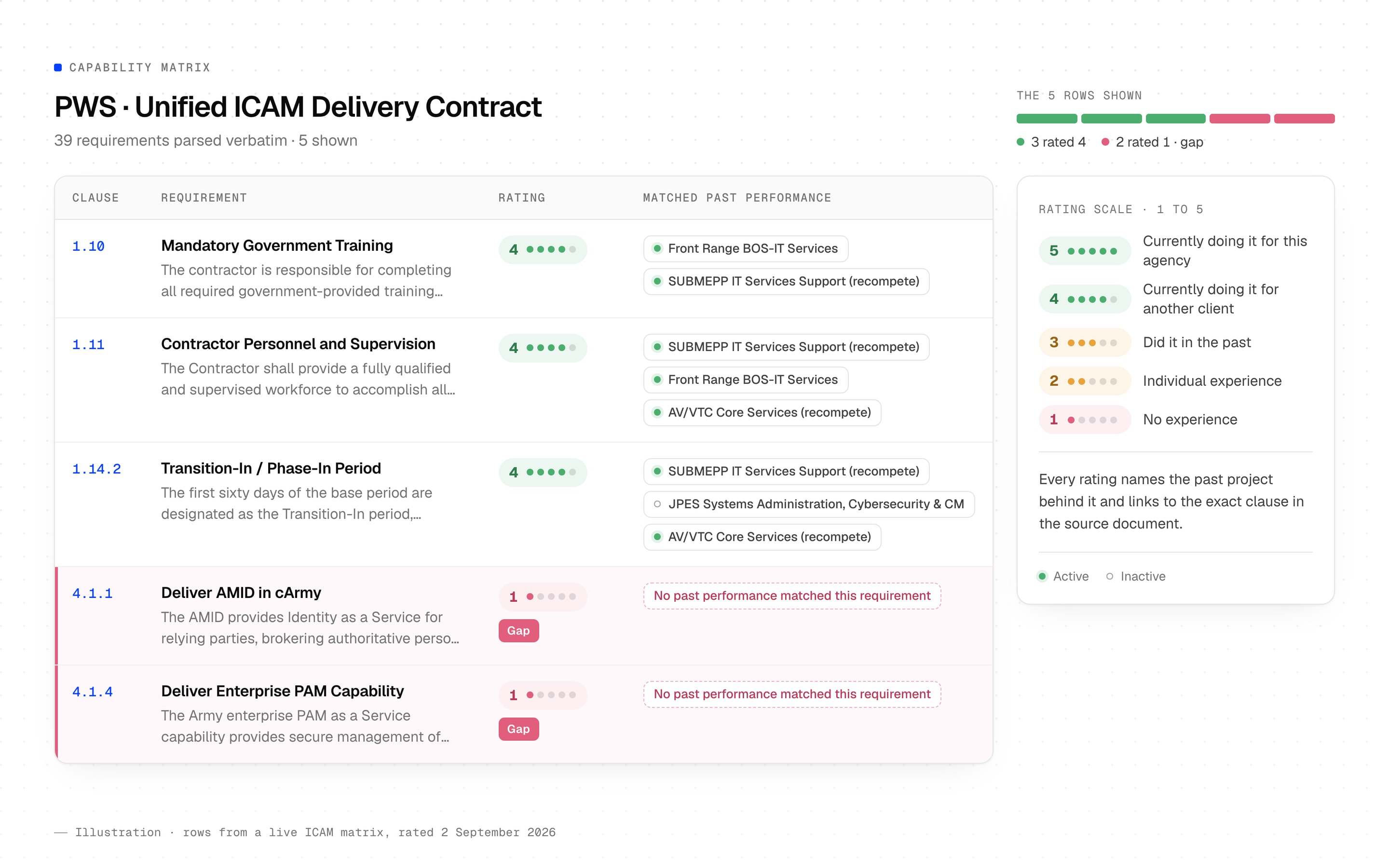
Your fit, scored line by line
For answering “can we actually do this?” with evidence.
The Capability Matrix is a gap analysis built for one pursuit. It takes the solicitation’s Performance Work Statement — the part that says what the contractor must do — and turns it into a table of requirements, one row each, exactly as written. Then it scores each row from 1 to 5 against the projects in your past-performance library.
Capture managers run it before the gate review to answer “can we actually do this?” with evidence rather than memory. Proposal staff reuse the rows and the cited projects when they write.
It replaces the spreadsheet someone filled in from memory over a weekend. The output is that same spreadsheet — exported to Excel in your template — except every rating is justified and traceable.
Capability Matrix, step by step.
Step 1: Pick the documents
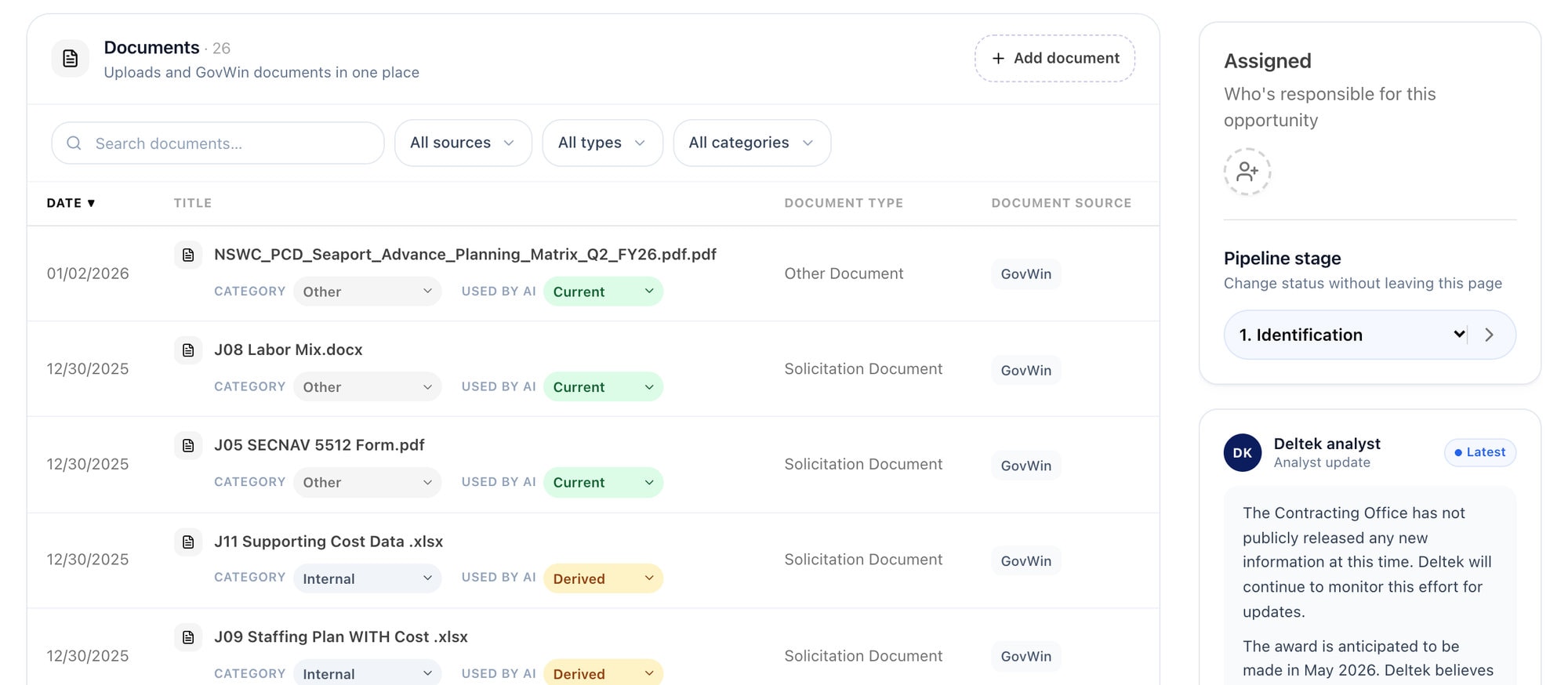
Tick the PWS or solicitation files stored on the pursuit — from GovWin, from HigherGov, or your own upload — and, if you like, include the scope-of-work text from the capture record. PDF, Word, Excel, PowerPoint and plain text are supported; anything else is greyed out.
Screenshot: Step one of the matrix: a list of stored solicitation documents with GovWin and HigherGov badges, one PWS file ticked.
Step 2: Extract the requirements
Extract Task Areas walks the document’s own section numbering — 1, 1.1, 1.1.1 — and keeps each heading and its text verbatim. Nothing is paraphrased. Only when a document has too few numbered clauses does the AI step in to draft task areas, and the matrix says which method was used.
Step 3: Score against your past performance
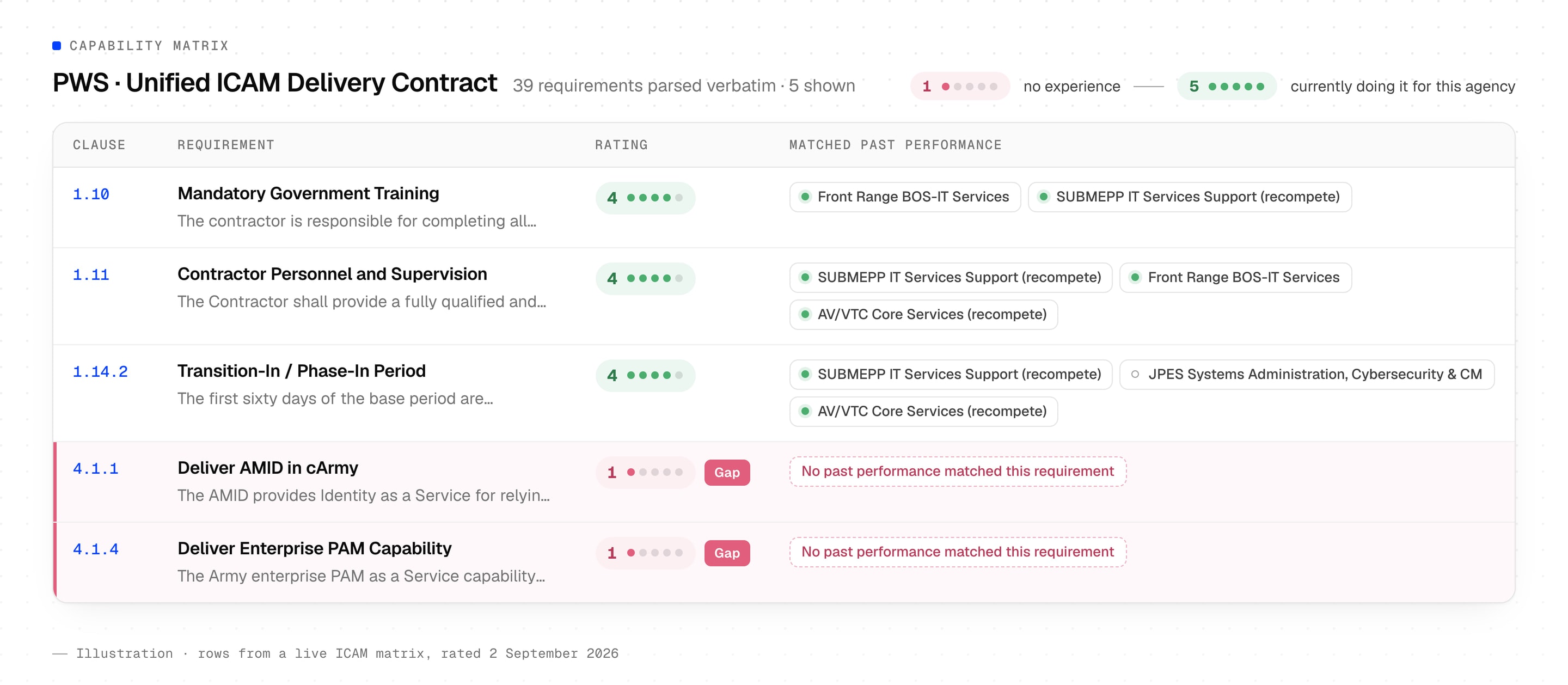
Score Against Past Performance sends every requirement, with your whole past-performance library, to the AI. It returns a 1-to-5 rating, a one- or two-sentence explanation written for a capture manager, and the projects that support it. A 4 or 5 needs a project that is active today; a 5 needs that project to be with the target agency.
Screenshot: Scored matrix rows grouped by PWS section, each with a match rating pill and a View Relevance button; Export, add task areas and Re-score in the toolbar.
Step 4: Check the evidence
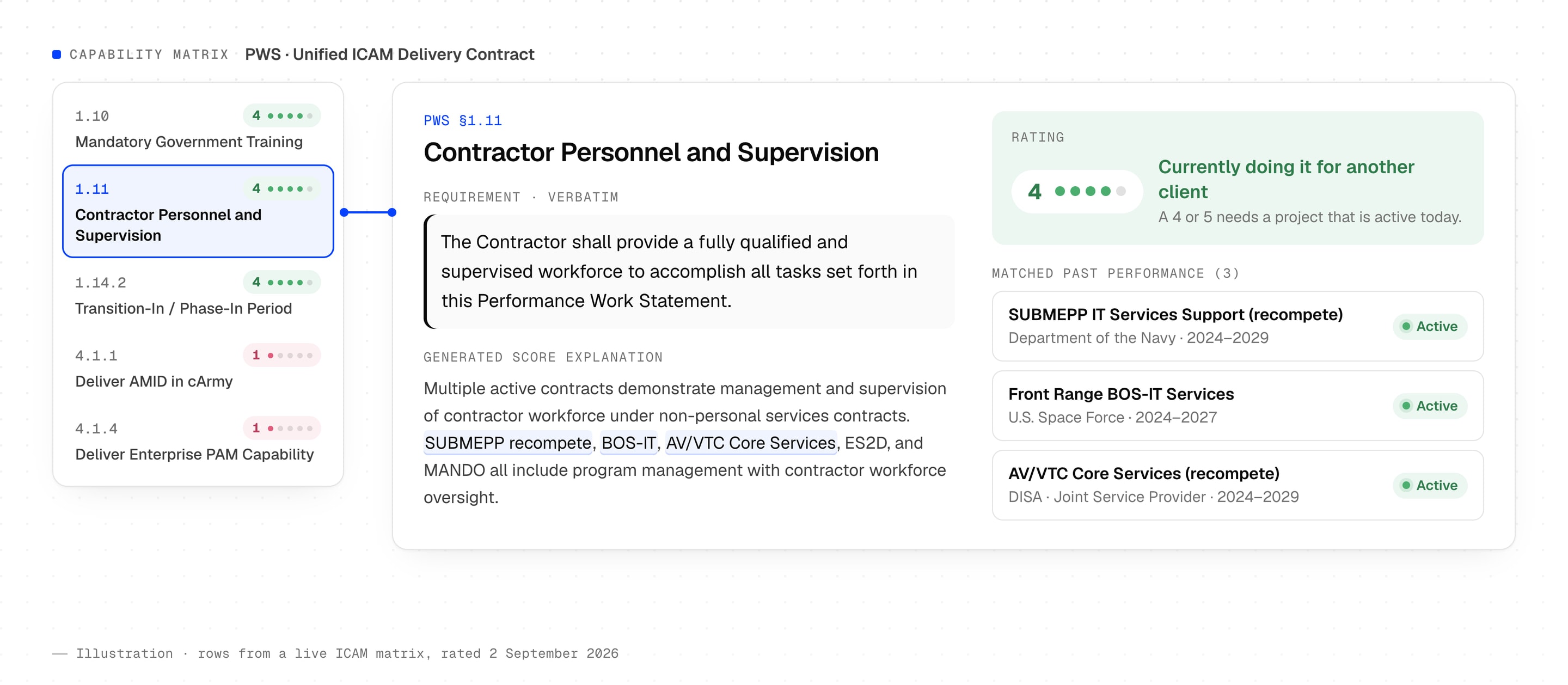
View Relevance opens the explanation and the matched projects — role, contract type, value, period, active or not, client, contract number. View in source document opens the file and jumps to the clause the row came from; for PDFs the page is shown with the clause highlighted.
Screenshot: Relevance pane for one requirement: the rating, the generated score explanation, and matched past-performance cards with contract type, value, period and client.
Step 5: Edit, add, export
Change any rating from a dropdown, rewrite the explanation, edit a row’s title or text, add your own rows or delete rows. Edited rows are badged. Export produces an Excel workbook in the team’s capability-matrix layout: task, rating, and the past-performance citation.
The specifics.
Rating scale: 5 — currently providing this to the target agency; 4 — currently providing it to other federal or commercial clients; 3 — did it in the past, not active now; 2 — individual, not company, experience; 1 — no experience.
The parser needs at least 8 numbered clauses to run; below that the AI fallback produces 5 to 25 task areas.
Each row keeps its section number, verbatim title and verbatim text — up to 4,000 characters — plus the page it came from.
The target agency is read from the opportunity’s GovWin buying organisation. If it is unknown, no 5 is ever awarded.
Every rating returns a written justification and the past-performance records that support it.
Documents fetched from HigherGov always carry a text extract, so the matrix can read them even when the file itself will not parse.
Rows autosave, and the matrix records which version of each file it read, so a changed source document can be detected.
Export is Excel only: header rows for the opportunity and solicitation number, the 1–5 legend, then one row per requirement.
Data behind Capability Matrix
- Source 01
- Solicitation documents stored on the pursuit — from GovWin, HigherGov or your own upload
- Source 02
- Your past-performance library, maintained in GovCon
- Refresh
- Runs when you press Extract or Score; nothing changes in the background. Re-extract replaces every row; re-score overwrites every rating.
The words, explained.
- PWS
- The Performance Work Statement — the part of a solicitation that says what the contractor must do. This is the document the matrix reads.
- Past performance
- Your company’s own record of contracts delivered — client, role, dates, value and the task areas covered. The matrix only scores against what is in this library.
- Target agency
- The organisation buying this contract. Only current work for it earns a 5.
- Task area
- One requirement in the matrix — a numbered clause from the PWS or, for unnumbered documents, a unit of work the AI drafted.
What people ask about Capability Matrix.
Short answers here. The playbook has the long ones, screen by screen.
Still have a question? Book a working session
What it works with.
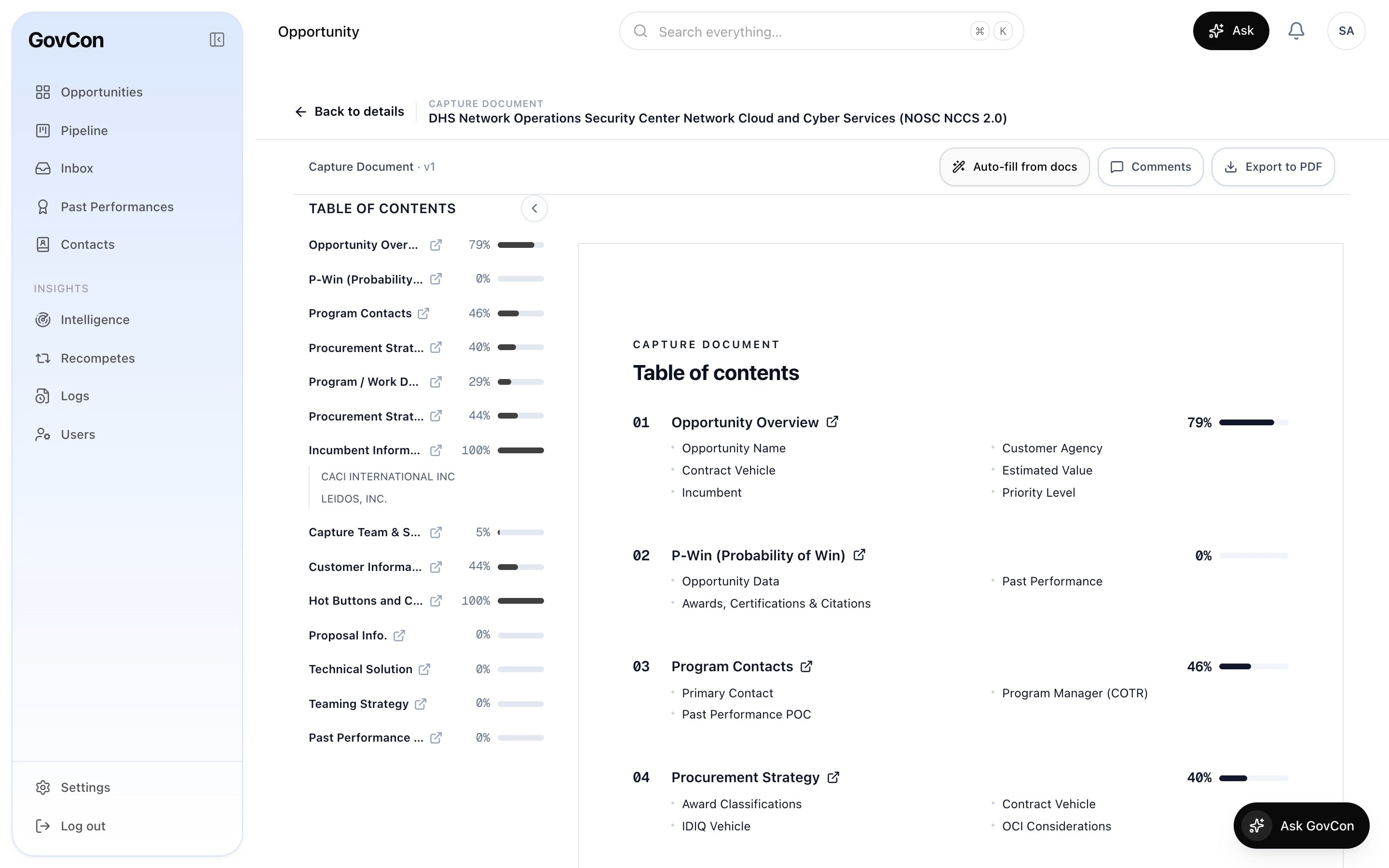
- Capture Document
 05
Capture Document
For turning “we should bid” into a plan.
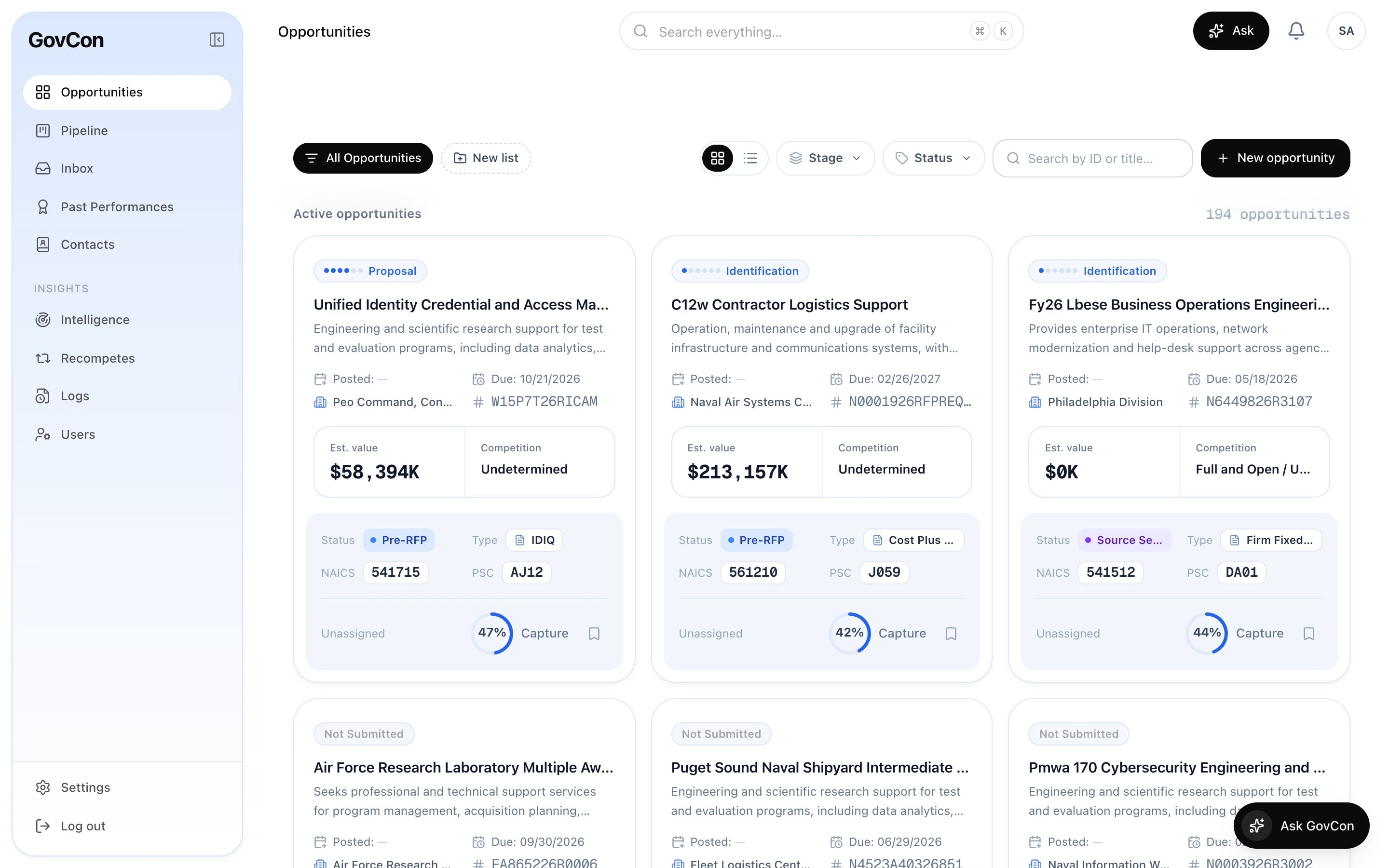
- Opportunities
 01
Opportunities
For keeping track of what you are chasing.
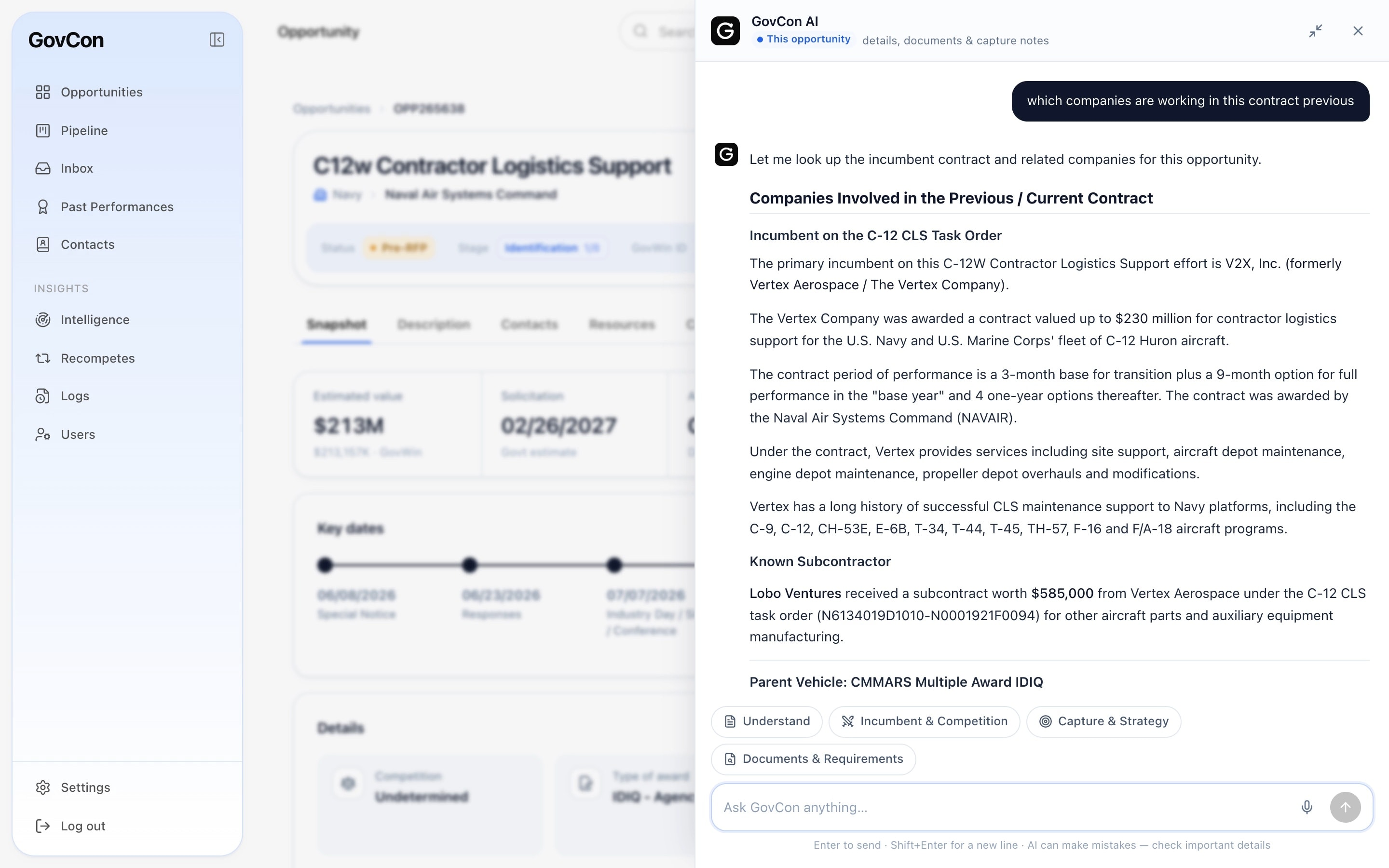
- Assistant
 07
Assistant
For getting a straight answer without reading two hundred pages.
Want it walked through on your own pursuit?
Bring one solicitation. In forty-five minutes we import it, pull the incumbent’s award history, and show you Capability Matrix working on it. You keep the record either way.
- GovWin under your own licence
- USAspending needs no account
- Nothing you upload trains a model