The primes in your slice, ranked by dollars.
Pick a slice of the market — an agency, a keyword, a NAICS code, a value band — and see every prime contractor in it ranked, with your own position alongside.
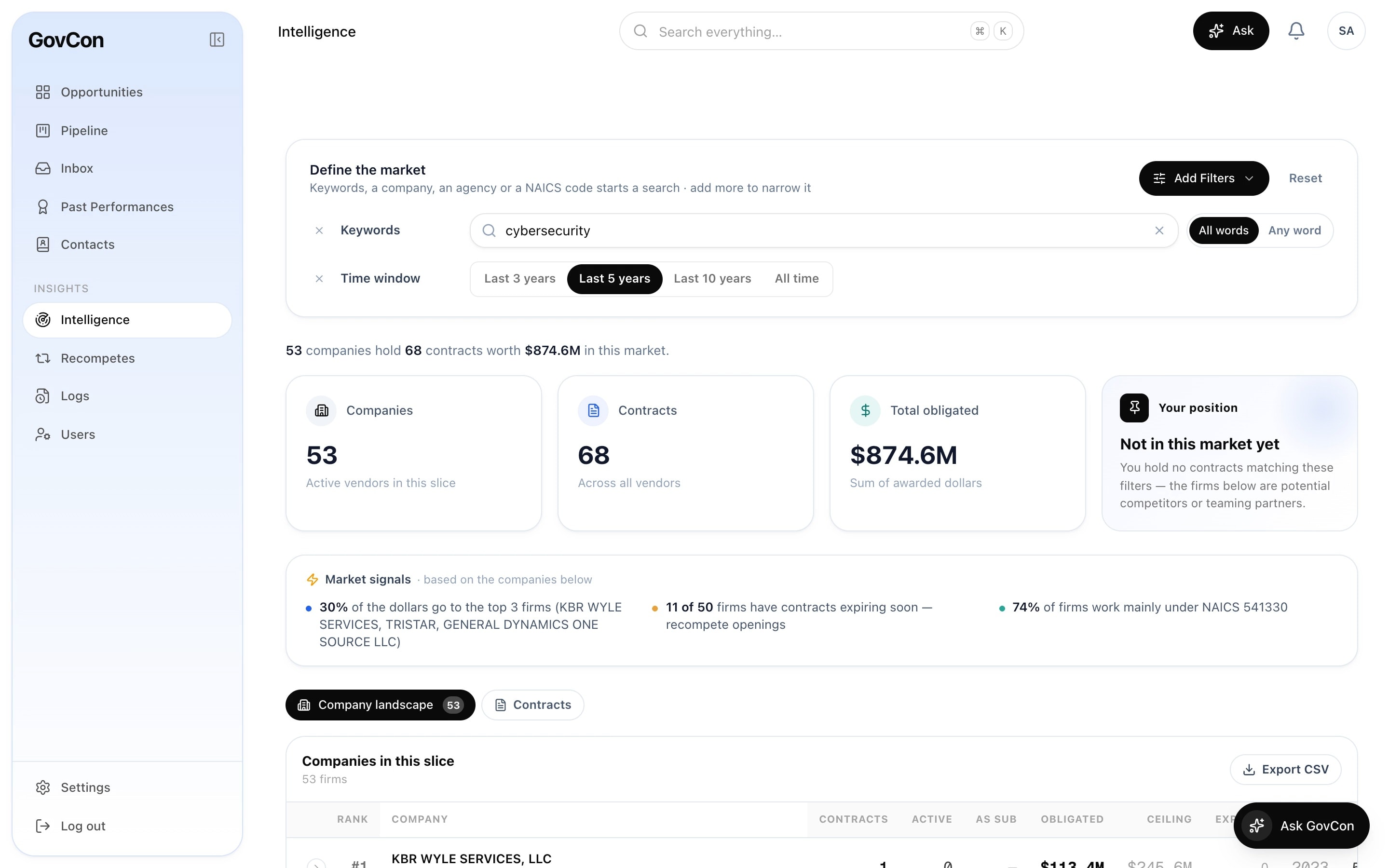
Who wins in your market, and where you stand
For knowing the field before you enter it.
Competitive Landscape ranks the prime contractors in whatever slice of the market you define, using the federal award record from USAspending.gov. Add a filter — the page will not run without one — and the table lists each company with its contracts, active awards, subcontract roles, obligated dollars, ceiling, awards expiring and first award year.
Capture managers use it to size the field before a bid: who dominates, who is small, who holds a facility clearance, who is about to have work expire. Teaming leads use it to spot partners. The market covered today is Department of the Navy IT and engineering work — six NAICS codes, fiscal years 2016 to 2025.
It replaces hours in USAspending’s own search and the spreadsheet you built from it. The same filters drive a typo-tolerant search of the contracts themselves.
Competitive Landscape, step by step.
Step 1: Choose a slice
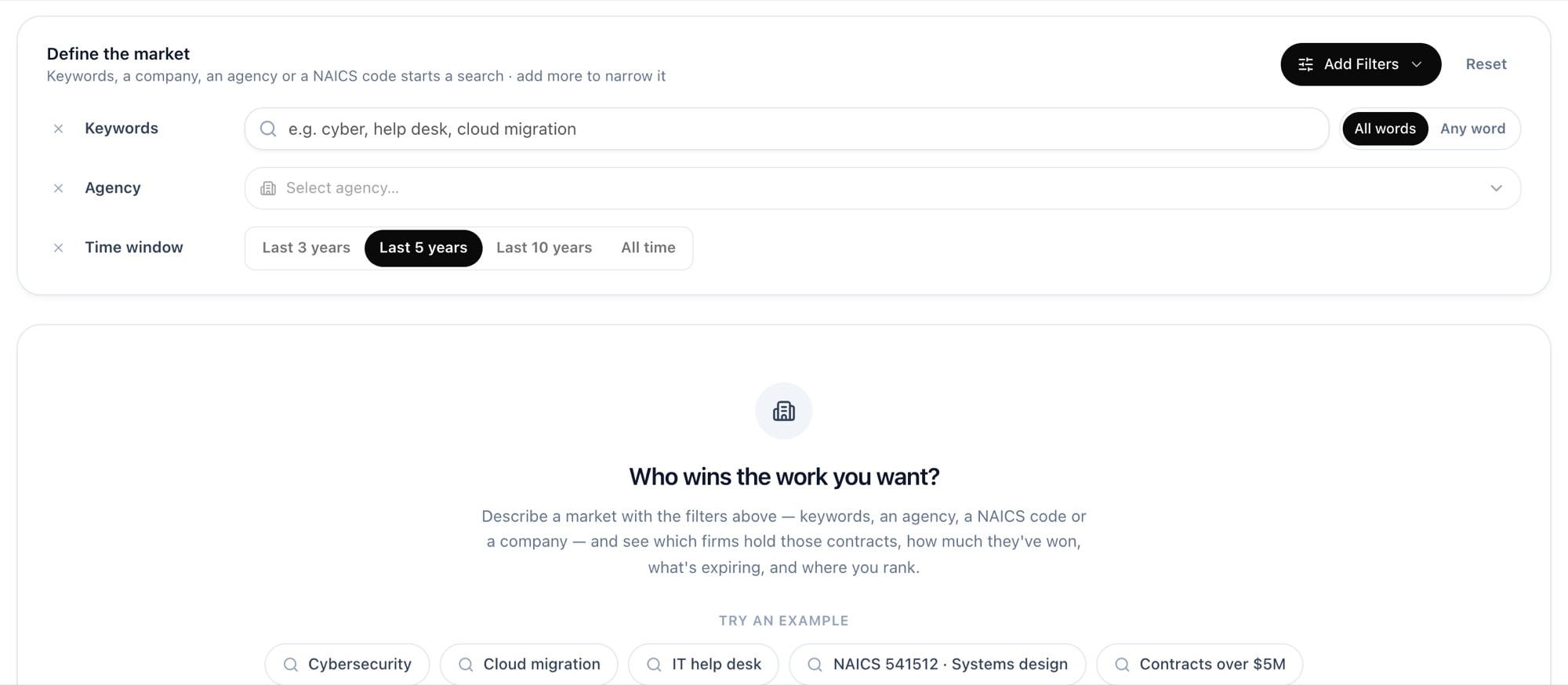
Add at least one filter: keywords (all words or any word), a company name, an agency down to office level, NAICS codes to include or exclude, an obligated-value band, or a time window of the last 3, 5 or 10 years or all time.
Screenshot: Competitive landscape before a search: empty totals, a Your position card, and keyword, agency and time-window filters.
Step 2: Read the totals
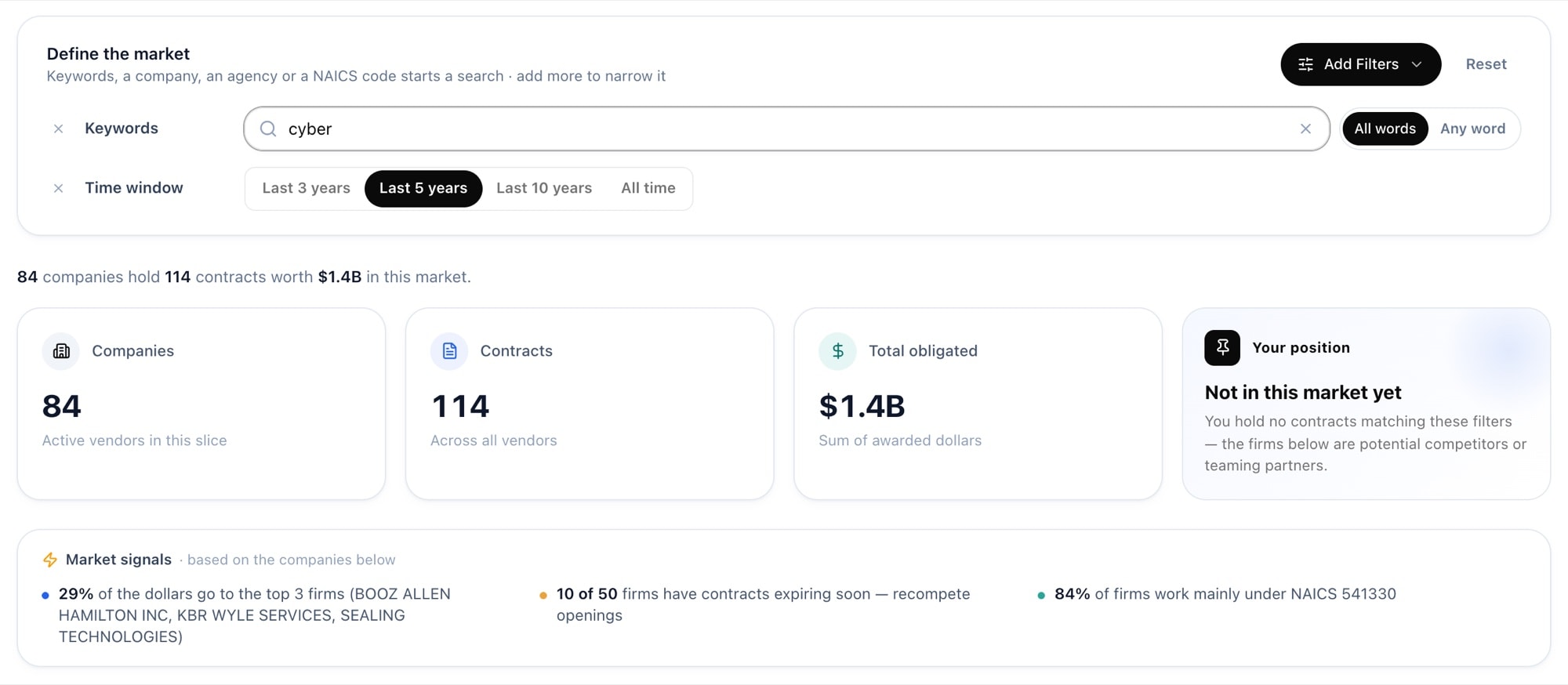
The header shows how many companies and contracts are in the slice and the total obligated. A Signals strip flags how concentrated the page you are looking at is — the top three firms’ share — how much of it is expiring, and the dominant NAICS code.
Screenshot: Totals for a slice — companies, contracts, total obligated — with a Signals strip showing top-three share, expiring share and top NAICS.
Step 3: Rank the primes
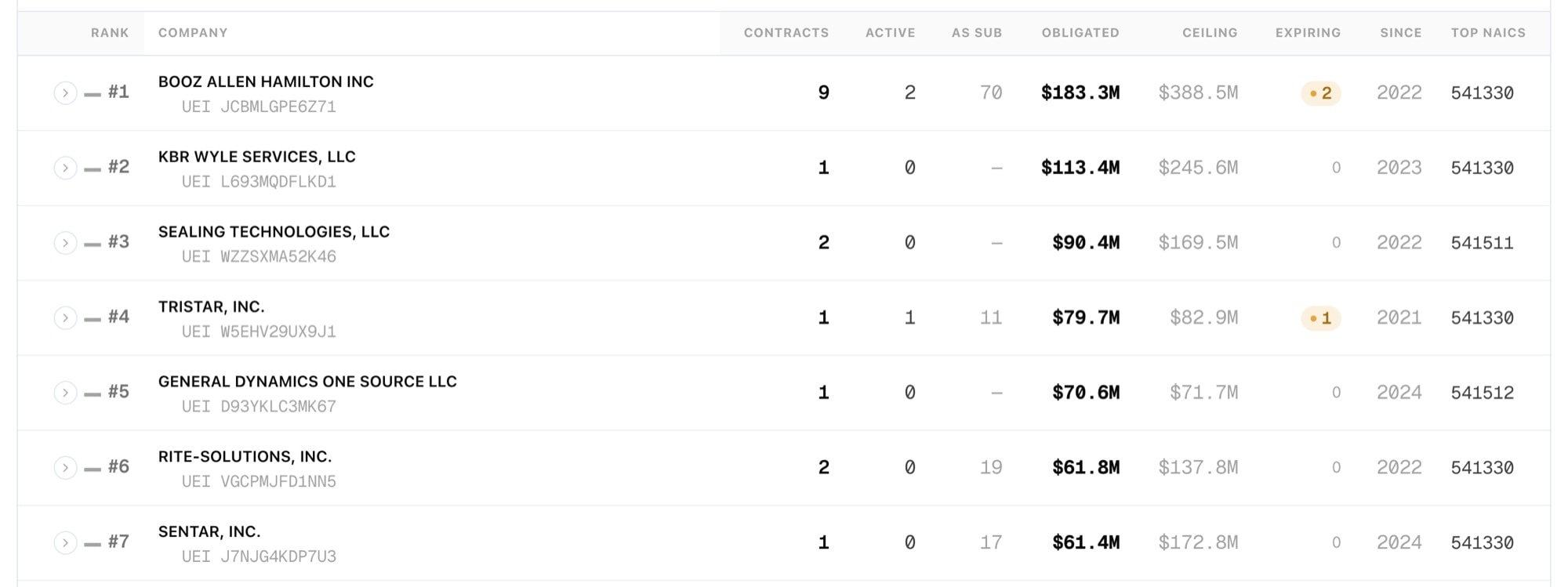
Every prime in the slice, ranked by obligated dollars: contracts, active, as sub, obligated, ceiling, expiring, first award year and top NAICS. Small-business and facility-clearance badges sit beside the name. Expand a row to list that company’s contracts.
Screenshot: Ranked table of prime contractors with contracts, active, as sub, obligated, ceiling, expiring, since and top NAICS columns.
Step 4: Open a company
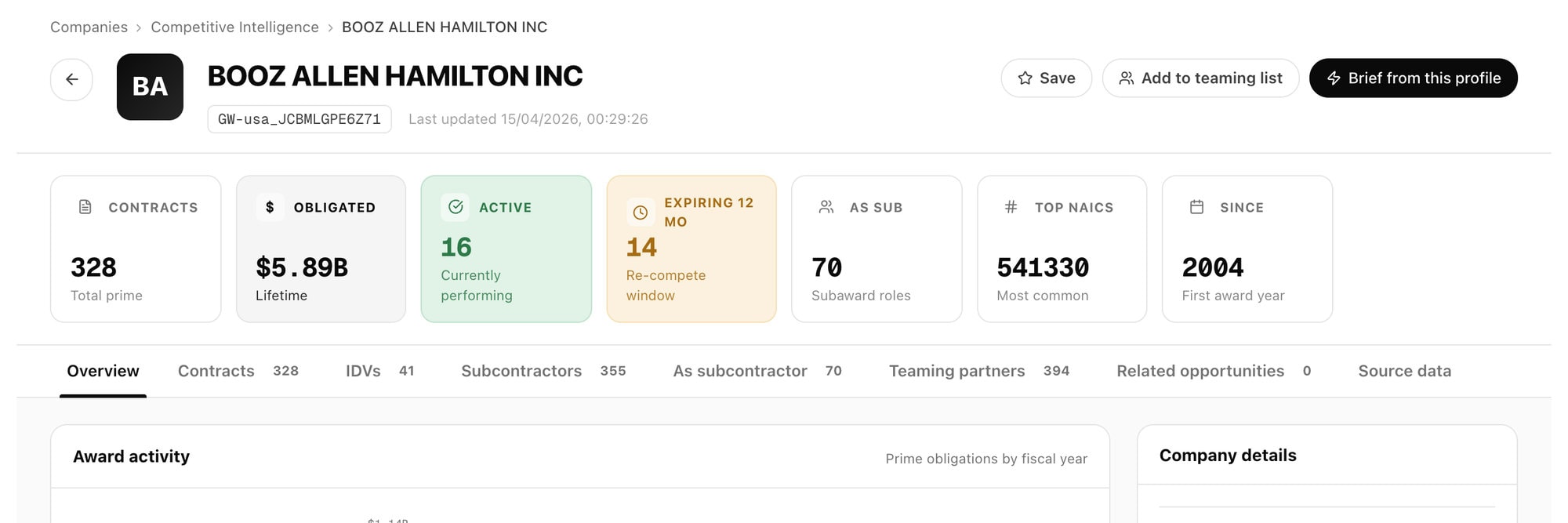
A company page shows lifetime obligated dollars, awards currently active, awards expiring in the next 12 months, subaward roles, top NAICS and first award year, with tabs for its prime contracts, the subawards it has received, related GovWin opportunities and its source data.
Screenshot: Company page tiles: contracts, obligated, active, expiring in 12 months, as sub, top NAICS and first award year, with contract and subaward tabs.
Step 5: See where you stand
A Your position card shows your rank, contract count, obligated dollars and share of the slice. If you hold no awards in it, the card says so and suggests using the slice to find teaming partners. The card is configured per workspace.
Step 6: Search the contracts themselves
The Contracts tab searches descriptions, NAICS, recipients and product codes with typo tolerance and prefix matching, highlights the matched terms, and exports the page of results you are viewing to CSV.
The specifics.
The ranking needs at least one filter; it will not run over the whole database at once.
Columns: Rank, Company, Contracts, Active, As Sub, Obligated, Ceiling, Expiring, Since, Top NAICS.
Badges: SB for small business, and the company’s facility-clearance level where it is recorded.
Search forgives typos on single words (“trainign” finds training) and understands prefixes (“cyber” finds cybersecurity).
Time windows of the last 3, 5 or 10 years, or all time, measured on the award’s signed date.
Contract pages show obligations by fiscal year, subcontractors, task orders under the vehicle, and the linked GovWin opportunity.
Workspace snapshot, 2 September 2026: 24,002 Navy IT and engineering contracts, $192.8B obligated, 11,604 companies, 36,260 subaward records.
Contract CSV export covers the page of results you are viewing.
Data behind Competitive Landscape
- Source 01
- USAspending.gov — the public record of federal awards, synced into your workspace for your market — awards, recipients, subawards and fiscal-year spending
- Source 02
- GovWin company profiles, where a company is also in GovWin
- Refresh
- Contract data is loaded by a sync run, not streamed live. Counts are a dated snapshot; anything computed from today's date — expiry countdowns, urgency bands — is recalculated every time the page loads.
The words, explained.
- Obligated
- Money the government has actually committed on a contract. The ceiling is the most it could commit.
- Prime and sub
- A prime holds the contract with the government; a sub is paid by the prime. “As sub” counts the subawards a company has received.
- NAICS
- North American Industry Classification System — the six-digit code that says what kind of work a contract is for. The market GovCon covers is defined by six of them.
- Facility clearance
- The government’s approval for a company to handle classified work at a given level. Shown as a badge where it is recorded.
What people ask about Competitive Landscape.
Short answers here. The playbook has the long ones, screen by screen.
Still have a question? Book a working session
What it works with.
- Recompete Radar
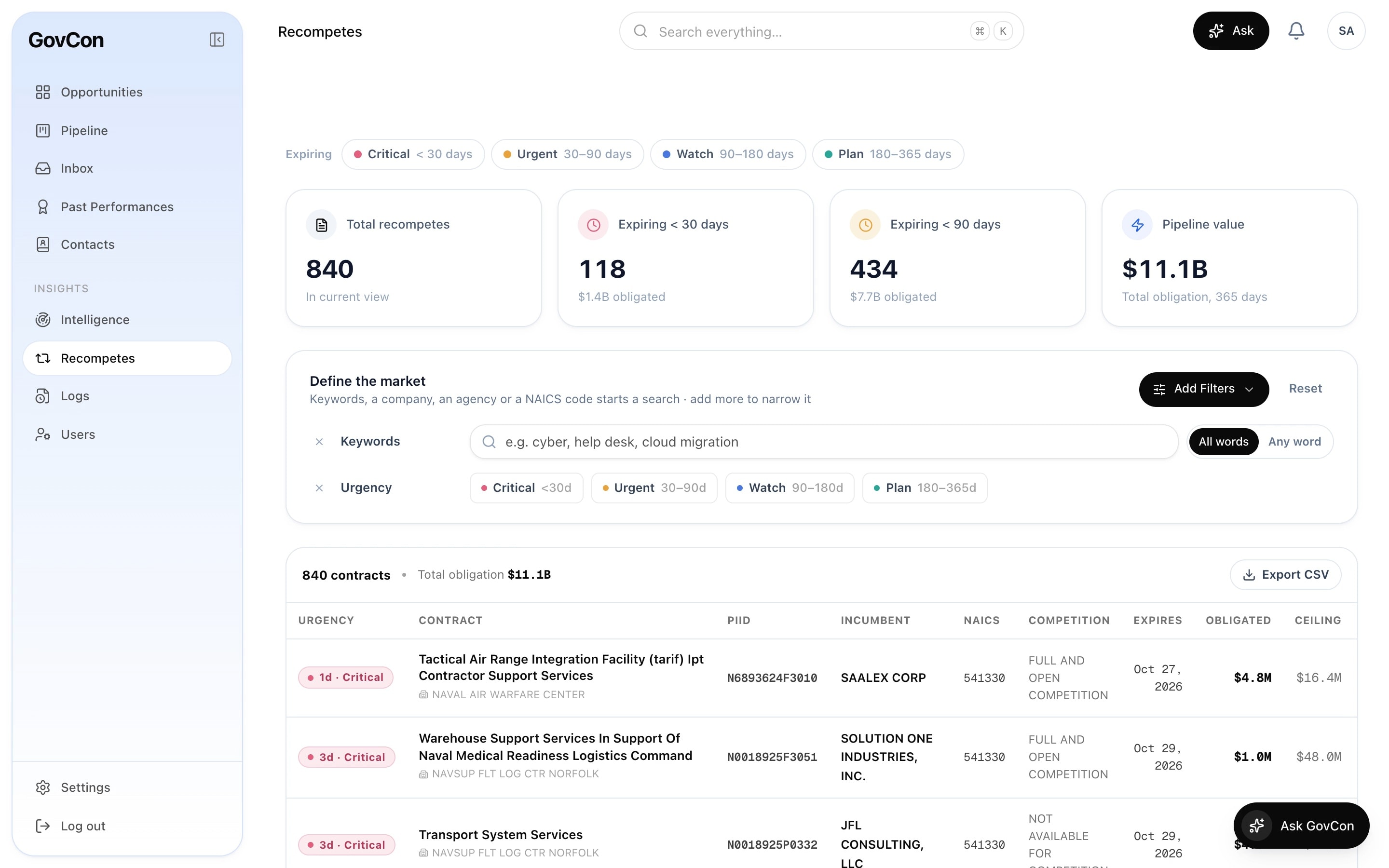 02
Recompete Radar
For finding work that is about to come back on the market.
- Capability Matrix
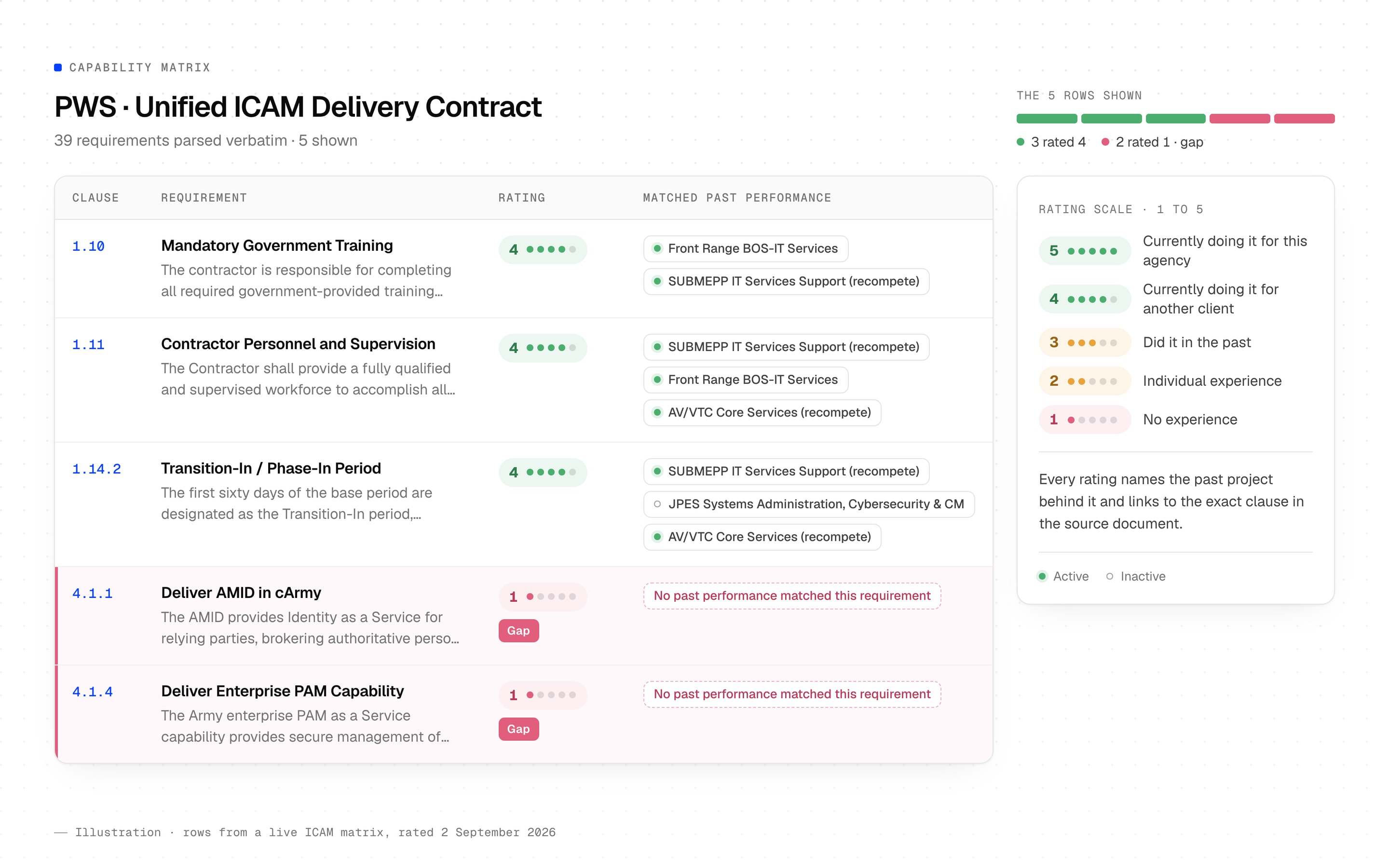 04
Capability Matrix
For answering “can we actually do this?” with evidence.
- Contacts
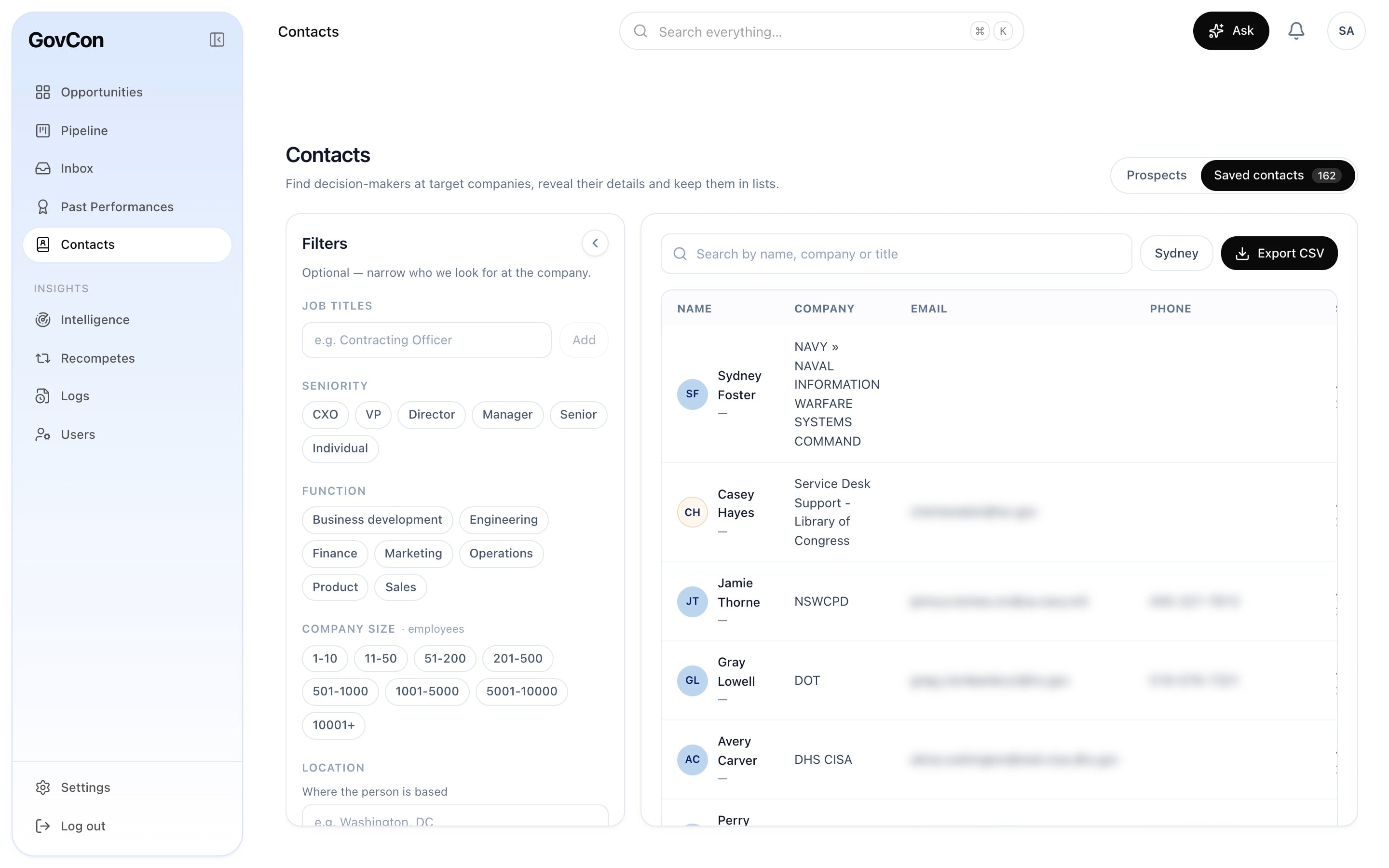 08
Contacts
For reaching decision-makers at a target agency or partner.
Want it walked through on your own pursuit?
Bring one solicitation. In forty-five minutes we import it, pull the incumbent’s award history, and show you Competitive Landscape working on it. You keep the record either way.
- GovWin under your own licence
- USAspending needs no account
- Nothing you upload trains a model