See who is in the document with you.
The capture document shows who else is in a section, mirrors their typing, carries comments in the margin and @mentions — and the Notes & Timeline keeps every note, file and stage move on one feed.
One record, everyone in it
For working on the same pursuit without e-mailing versions around.
Collaboration in GovCon is built into the opportunity record rather than bolted on. Open a section of the capture document and you see who else is in it, with named cursors; what you type is mirrored to them within about a second and saved to the record. Comments sit beside the document, and every note, file and stage move on the pursuit lands on one feed.
Capture managers, writers and reviewers use it during capture; business developers use the Notes & Timeline to log calls and decisions. Anyone can read; writing in the capture document needs the edit permission.
It replaces the Word file e-mailed around with “v3-final” in the name, and the thread of comments nobody can find later.
Team collaboration, step by step.
Step 1: Open the document
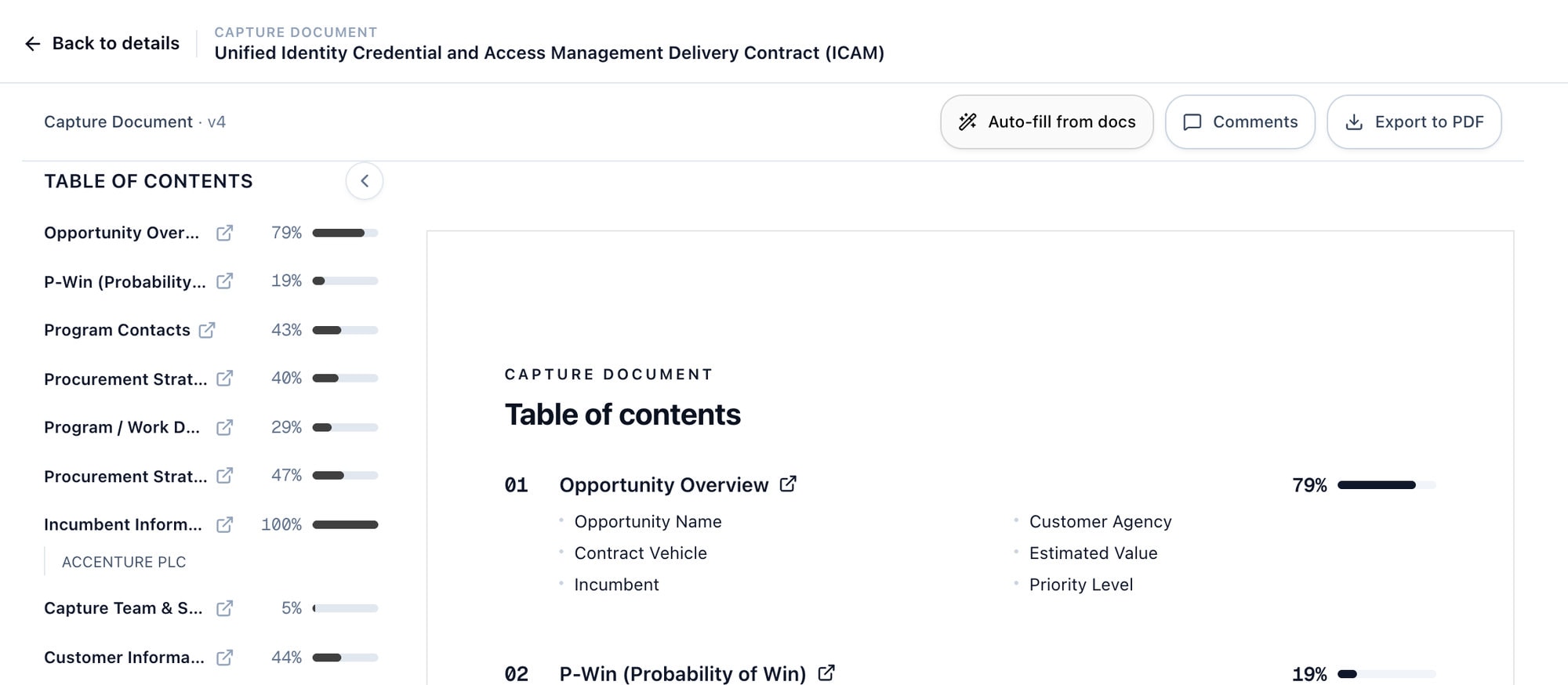
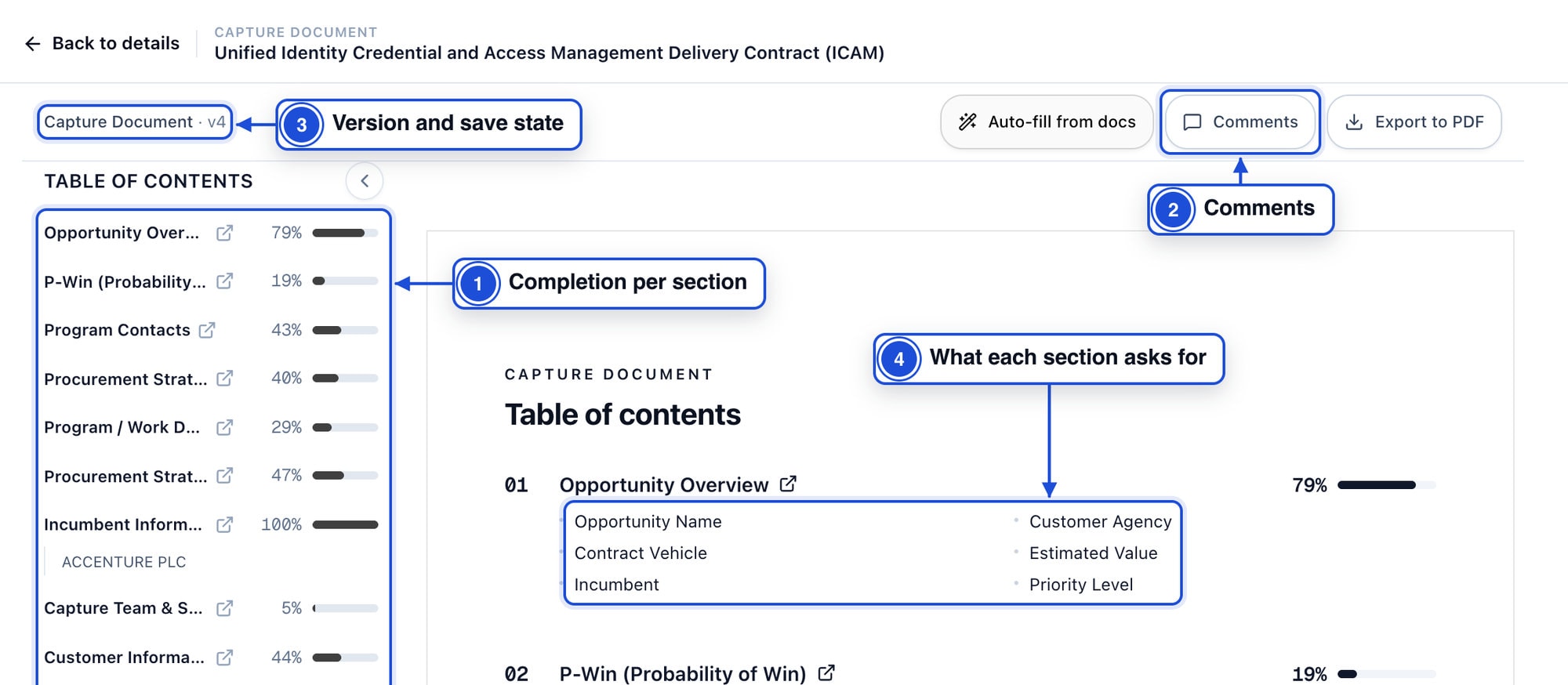
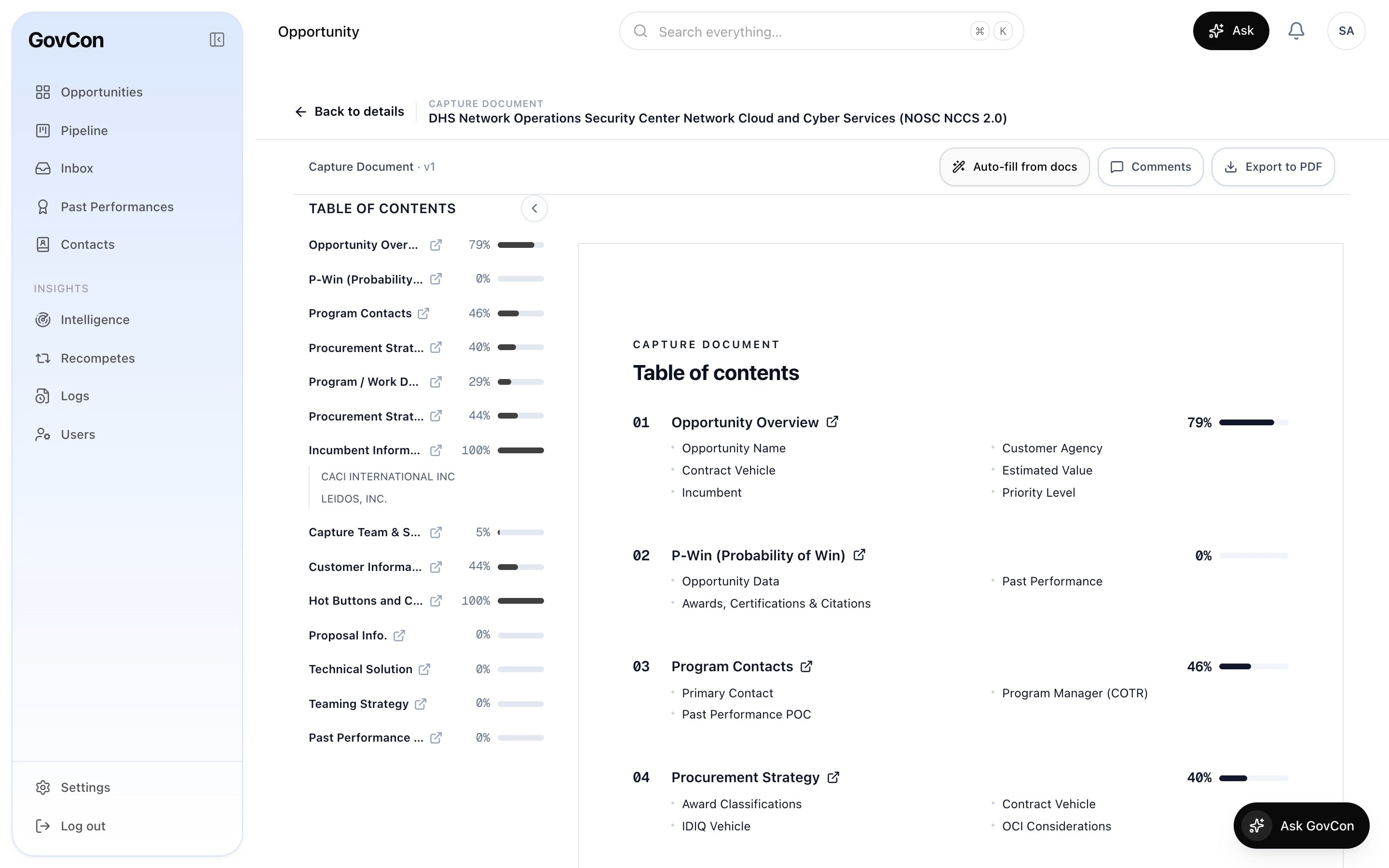
The table of contents lists the sections with a completion percentage each, and any section can open in its own tab. The toolbar shows the version and save state and holds the Comments panel and the export.
Screenshot: The capture document: table of contents with completion per section, the version and save state, the Comments button, and the contents page listing what each section asks for.
Step 2: Work in a section together
Open a section and a Live indicator lists who else is in it. Cursors are drawn in a colour per person with their name. What a teammate types is mirrored to you as they type, and when you open a section you get their latest saved text. Someone who has been silent for 45 seconds drops off the list.
Step 3: Comment where it matters
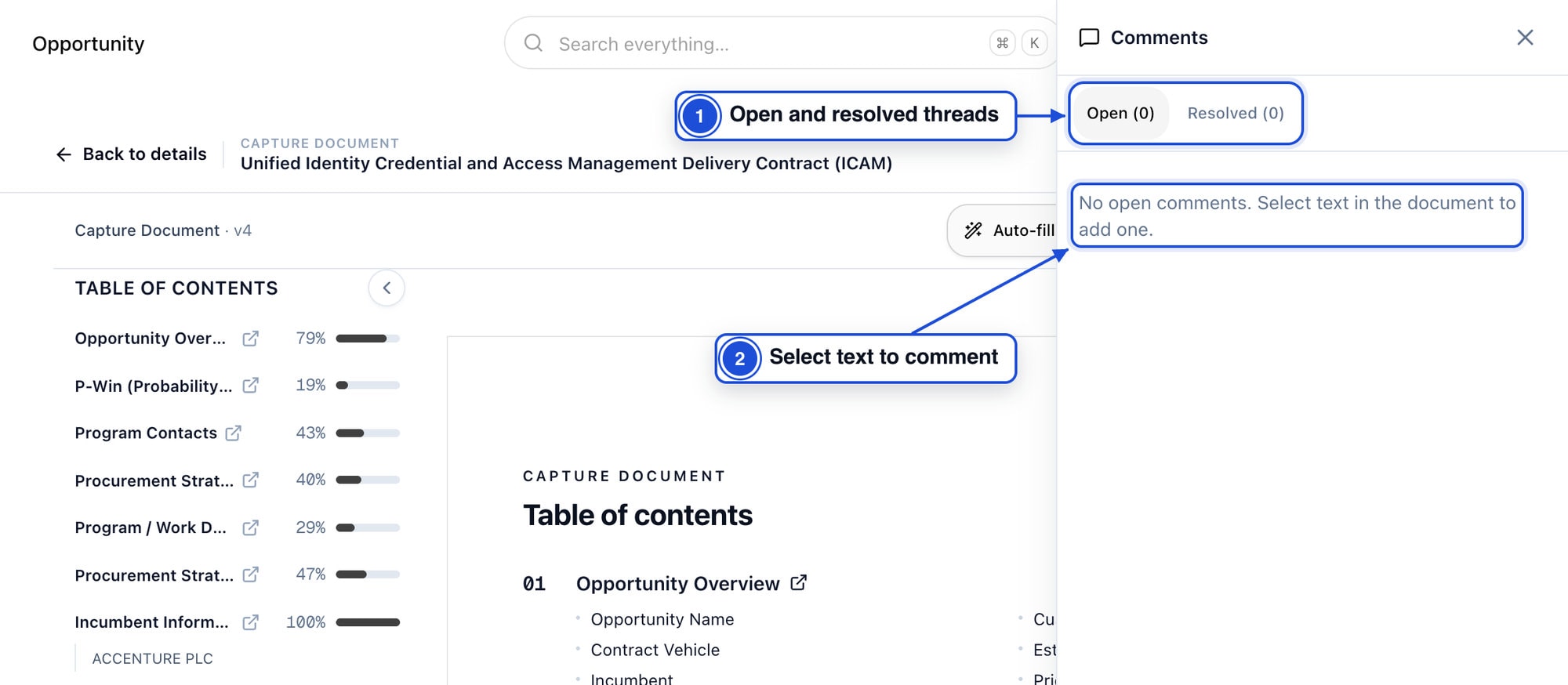
Select text and add a comment on that spot, or type / anywhere to do the same. Comments are listed as Open or Resolved in the side panel and can be reopened. A comment on a whole section can carry attachments. @mention a colleague and they are notified.
Screenshot: The Comments panel beside the capture document, with Open and Resolved tabs and the prompt to select text in the document to add one.
Step 4: Keep the running record
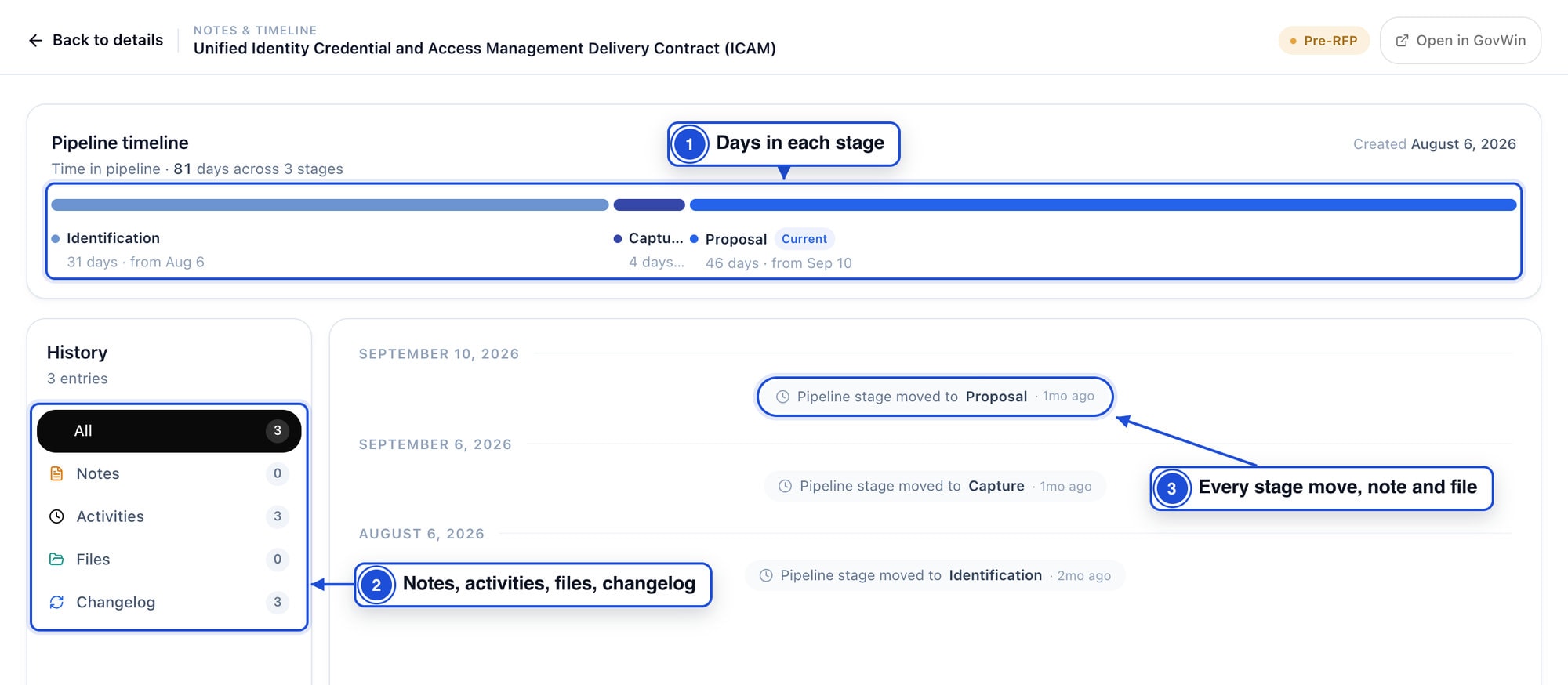
The Notes & Timeline tab shows the days spent in each pipeline stage as a bar, then one feed of notes, activities, files and changelog entries with counts. Post a note with @mentions and attachments; pin the ones that matter.
Screenshot: Notes & Timeline: a days-per-stage bar, a history rail with All, Notes, Activities, Files and Changelog counts, and the feed of entries.
Step 5: Tell people
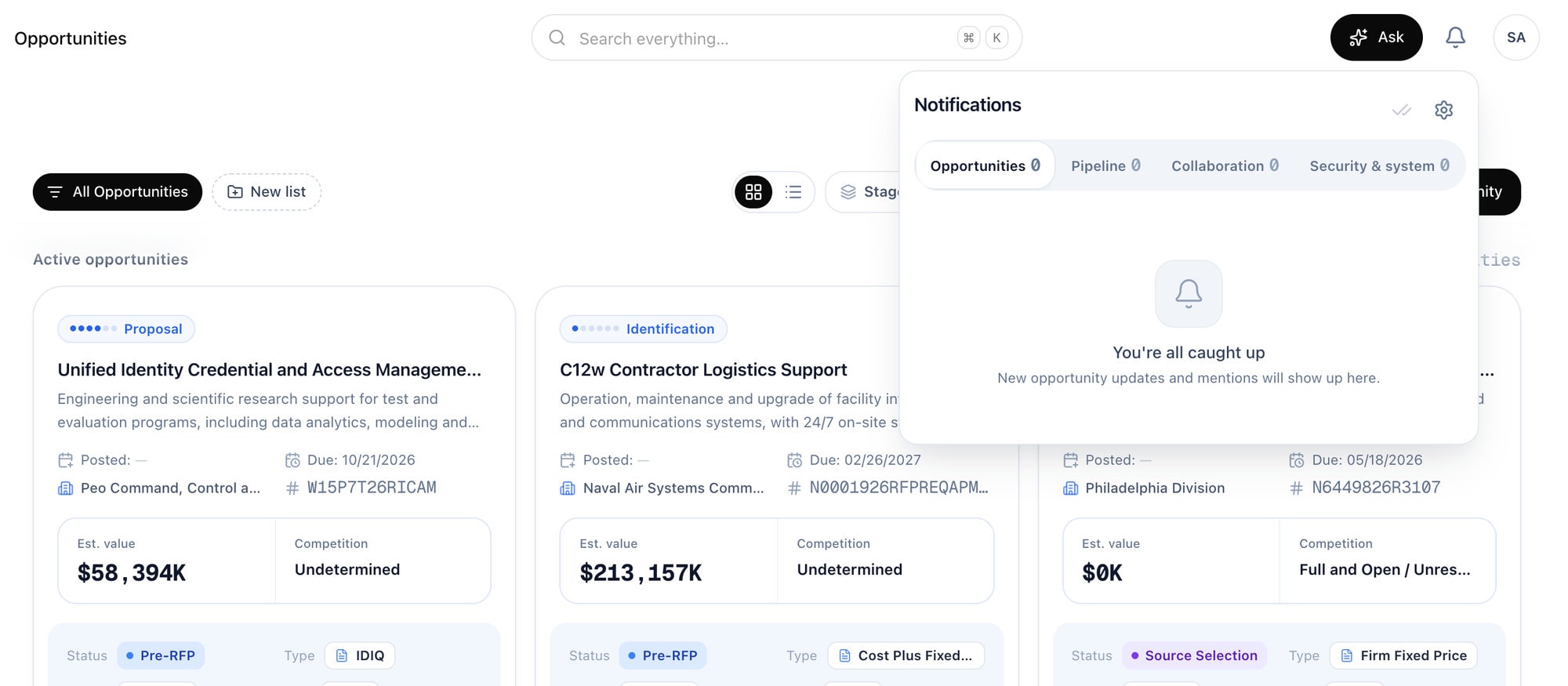
A @mention notifies the person in the app and, if they have it switched on, by e-mail. A note on the timeline notifies the pursuit’s assignees; a stage move notifies them too.
The specifics.
Presence and live text sync run per section over a live connection; a teammate silent for 45 seconds is dropped from the list.
Live mirroring runs on the core sections of the capture document. The remaining sections still autosave but do not mirror a teammate’s typing.
The last write wins on a section: two people editing the same paragraph at the same moment are not merged, which is why the presence list is there.
Two kinds of comment: on a section, with up to 10 attachments of 10 MB each and one pinned comment per section; and inline on selected text, listed as Open or Resolved.
Notes & Timeline: filters All, Notes, Activities, Files and Changelog with counts, a Pinned rail, and a composer with @mention autocomplete and file attachments.
Days per stage are computed from the timestamped stage history.
Edits are mirrored as you type and persisted a couple of seconds after you stop.
Comment threads refresh live for everyone in the document.
Data behind Team collaboration
- Source 01
- Your team’s own writing, comments, notes and files
- Source 02
- Stage history, from the pipeline
- Refresh
- Presence is live while a section is open. Edits are mirrored as you type and saved a couple of seconds after you stop.
The words, explained.
- Presence
- Knowing who else has the same section open right now. GovCon shows their name and cursor.
- Last write wins
- When two people save the same section at the same moment, the later save is kept. GovCon does not merge simultaneous edits, so watch the presence list.
- Inline comment
- A comment attached to a run of selected text, shown in the margin and listed as Open until someone resolves it.
- Notes & Timeline
- The tab on every opportunity that keeps notes, activities, files and stage changes on one dated feed.
What people ask about Team collaboration.
Short answers here. The playbook has the long ones, screen by screen.
Still have a question? Book a working session
What it works with.
- Capture Document
 05
Capture Document
For turning “we should bid” into a plan.
- Automatic updates & notifications
 09
Automatic updates & notifications
For keeping up with a pursuit that keeps moving.
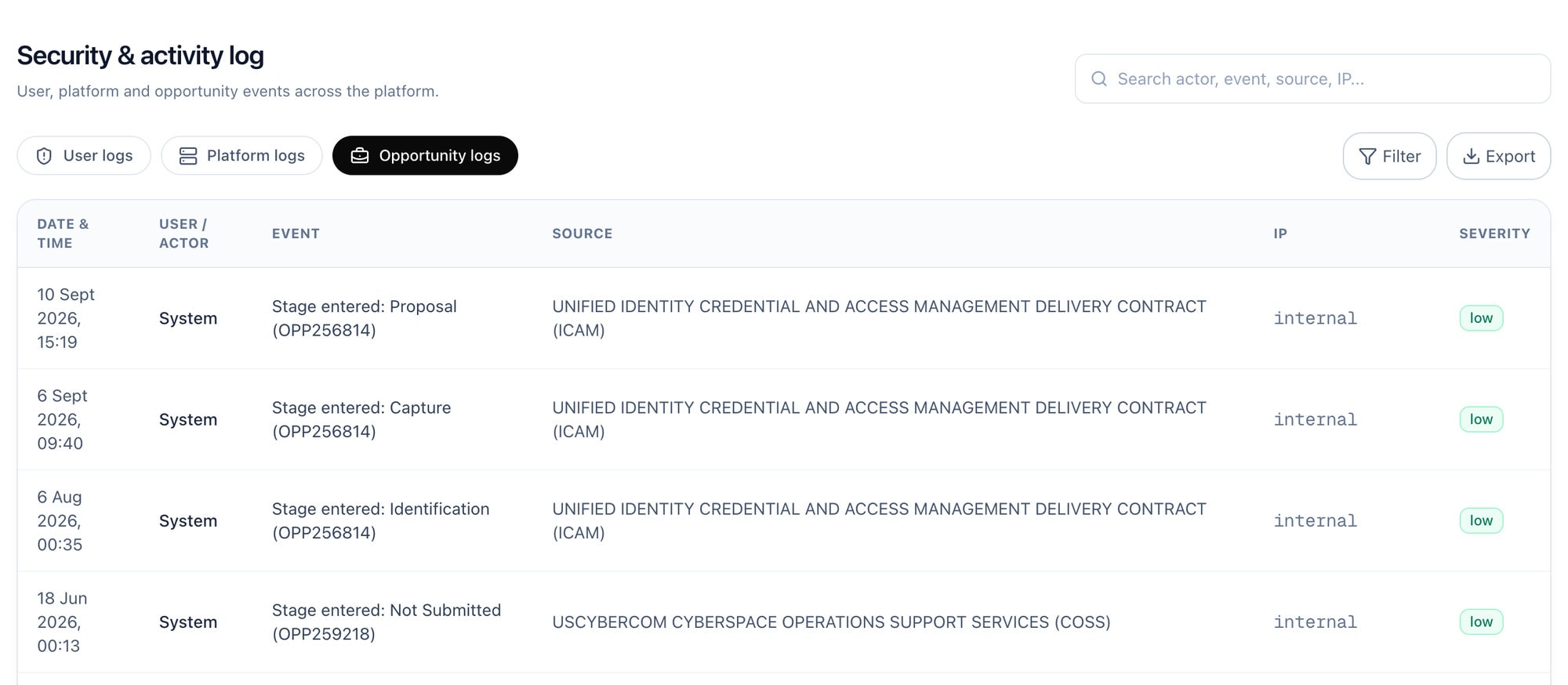
- Roles, permissions & audit
 11
Roles, permissions & audit
For controlling access without a spreadsheet of who-can-what.
Want it walked through on your own pursuit?
Bring one solicitation. In forty-five minutes we import it, pull the incumbent’s award history, and show you Team collaboration working on it. You keep the record either way.
- GovWin under your own licence
- USAspending needs no account
- Nothing you upload trains a model